 |
HTMLGUI
2.13.5-1
|
|
HTMLGUI
2.13.5-1
|
This document is for programmers and developers who want to understand and use the ADK GUI framework.
This guide provides information on the usage of the ADK GUI system composed of DirectGUI. With version 2.x, the support for WebGUI running in a Web browser has been dropped since only DirectGUI was deployed in the field due to limited terminal resources.
Version 2.x focuses on issues that could not be fixed while preserving 100% compatibility with version 1.x. Minor changes are introduced that requires code changes when switching from version 1.x to 2.x. See Migrating from Version 1.x to 2.x for a detailed description of these changes.
The following are the hardware and software requirements of the ADK GUI system.
The ADK GUI system is hardware platform agnostic and supports installation on V/OS, Raptor, and Verix terminals.
The ADK GUI system can also run on Microsoft Windows platforms with underlying FLTK installations.
DirectGUI requires the installation of corresponding platform packages. For details please refer to the release notes.
The described GUI system allows applications to define HTML based user dialogs and screen contents. This includes standard HTML support for static text, fonts, tables, images, input elements for numeric, textual, menus, buttons, etc. Specific support for PIN input is provided.
The application programming interface allows generic invocation of such pre-defined HTML documents with exchange of the relevant dialog parameter between the application logic and the GUI system supporting variable data definition in the HTML documents.
In addition, specific APIs are provided for typical use cases such as menus, confirmations, and data inputs. These specific functions rely on HTML templates that get filled-in during runtime.
FLTK widget framework based implementation with reduced HTML/CSS functionality and small footprint.
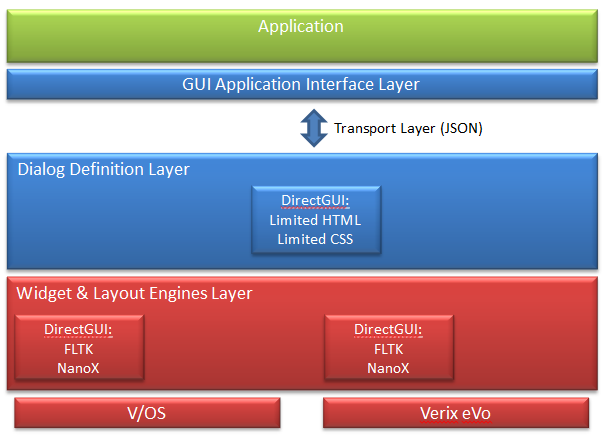
Both solutions provide the same application programming interface, but have different capabilities in the dialog definition with regards to supported HTML/CSS features and Java script support.
This chapter discusses the features of the ADK GUI system.
HTML dialogs are separated from the application and stored in platform specific subdirectories. By this the application itself becomes platform independent. The platform dependent layout of dialogs is moved to HTML files. Therefore, the same application binary may be used on different platforms while only the HTML dialog files are different. Since also the input and keyboard handling is handled by HTML dialogs the whole bandwidth of devices can be covered, from small B/W displays with function keys up to large true color displays with touch screen.
Most terminals display different types of information on screen, which are updated independently.
Example:
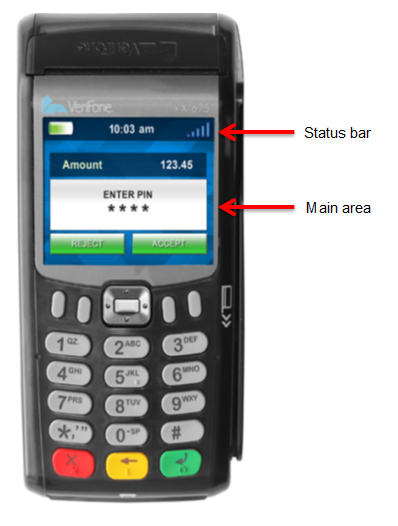
The above example shows a status bar that displays the date and time (along with other information) that is updated separately.
This concept is covered by UI regions. Each region has a unique ID used for displaying a dialog in a specific area on the screen. Region 0 is the default region and is usually assigned to the main part of the screen (i.e. the main application dialog).
Actions may be bound to function keys by using invisible buttons. For devices without touch screen capabilities, this is the only way of operating the device. Two different concepts are supported:
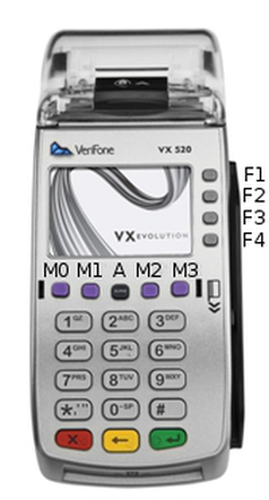
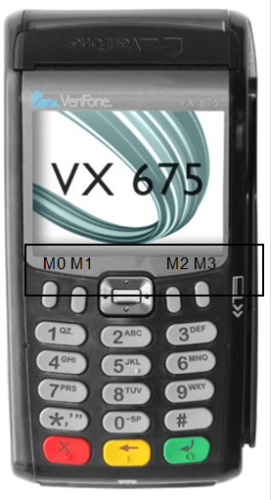
The selection of the concepts depends on the device. For example VX520 with its function keys around the display might be suited better for the first type of navigation while VX675 with its 4-directional navigation key is a candidate for the second approach.
Most dialogs contain some dynamic data that needs to be controlled by the application. For this purpose, XML processing instructions are used to insert data provided by the application into dialogs. The following use cases are supported:
There are two ways to display dialogs in multiple languages:
This chapter contains detailed change descriptions between version 1.x and version 2.x.
Version 2.x breaks compatibility to be able to fix some issues that exists in version 1.x. Furthermore, it paves the way for adding of new features in upcoming releases. Minor code changes are required when switching from version 1.x to 2.x. This chapter lists the incompatibilities and the changes required in the application.
#include “html/gui.h” must be used instead of #include “gui/gui.h”.vfihtml. This new namespace is automatically referenced by vfigui and vfiprt. In most cases, no action is required.uiMain() is no longer required or supported. Instead, the application has to use main() just like any plain program.uiThreadCreate() is no longer required or supported. Instead, the POSIX function pthread_create() should be used. If for some purpose thread specific properties are required, they can be enabled using uiSetLocalProperties().UI_PROP_TIMEOUT is now global to all threads, switching it back and forth on each dialog invocation may create a race condition and should not be used. For setting up an idle timeout, <input type=”idletimeout”> should be used. This is much more flexible since it specifies the idle timeout inside the HTML document. It also controls the action taken in case of an idle timeout.UI_PROP_TIMEOUT has been changed to -1 (disable global timeout).uiReadConfig() no longer internally invokes uiLayout() to set the layout. This caused problems when using more than one application since uiReadConfig() destroys the first layout as soon as the second one is called. uiLayout() now has to be called explicitly by the application.uiInvokeWait is used to get the result of the dialog. It either returns with the result or error code. In case of timeout, it returns UI_ERR_WAIT_TIMEOUT. This has to be invoked again to obtain the result. All other cases that required to call uiInvokeWait again are not handled internally and are no longer visible to the application to simplify the use of uiInvokeWait. uiInvokeWait.action=’load …’, next dialog loads in sequence as part of processing uiInvokeWait (or one of the other ui*Wait functions). For version 2.x, Loading happens independent of uiInvokeWait, which should speed up the display dialogs in some cases. The application does not have to be changed to take advantage of this.UIRegion. When set to zero, it becomes compatible with version 1.x.uiEnterRegion() and uiLeaveRegion() are used to navigate within the hierarchy. As long as these functions are not used, regions behave exactly the same as in version 1.x.This chapter gives the programming toolset for ADK GUI.
The GUI system is intended to run across the entire hardware portfolio. The following table list different characteristics of these devices.
| Model | Touch | Color | Resolution | Keypad | Function Keys | Resource Path |
|---|---|---|---|---|---|---|
| Vx520 (B/W) | No | No | 128x64 | 0-9,*,#,CAN,CORR,OK | 4+4+Alpha | 128x64M24N |
| Vx6, Vx8 | Yes | Yes | 240x320 | 0-9,*,#,CAN,CORR,OK | — | 240x320C15T |
| Vx675/Vx5 color | No | Yes | 320x240 | 0-9,*,#,CAN,CORR,OK | 4+4*Cursor+Enter | 320x240C24N |
| Mx915 | Yes | Yes | 480x272 | 0-9,CAN,CORR,OK | — | 480x272C13T |
| Mx925 | Yes | Yes | 800x480 | 0-9,CAN,CORR,OK | — | 800x480C13T |
| Ux100 | No | No | 128x64 | 0-9,CAN,CORR,OK,INFO | 2 | 128x64M16N |
| e265 | No | No | 160x120 | 0-9,*,#,CAN,CORR,OK | — | 160x120M15N |
| e315/335 | No | No | 128x32 | 0-9,*,#,CAN,CORR,OK | — | 128x32M15N |
| e355 | No | Yes | 320x240 | 0-9,*,#,CAN,CORR,OK | — | 320x240C15N |
| Carbon X10 | Yes | Yes | 854x480 | — | — | 854x480C0T |
| M400 | Yes | Yes | 854x480 | 0-9,*,#,CAN,CORR,OK | — | 854x480C15T |
| P400/V400 | Yes | Yes | 320x480 | 0-9,*,#,CAN,CORR,OK | — | 320x480C15T |
| P200/V200c | No | Yes | 240x320 | 0-9,*,#,CAN,CORR,OK | 2+4*Cursor | 240x320C21N |
Users need to take these characteristics into account when designing GUI dialogs for the different hardware platforms.
The GUI system provides a header file (html/gui.h) that exports the GUI system API function calls. Different client side libraries to link with applications are provided. These libraries provide the same interface but offer different deployment options (creating a monolithic executable or running the application with a separate GUI server).
The following provides an overview of the various DirectGUI deployment options.
Monolithic Application
Everything is compiled into one application. Only one application can be used at a time since the display access cannot be shared between different applications.
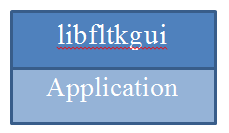
Monolithic applications are not supported on Verix. Please note that monolithic applications needs to link additional static libraries to resolve symbols of library libfltkgui.a. These libraries come along with following distribution packages:
Using GUIServer
The GUI system runs as a separate process to be able to handle more than one application. Synchronization between applications is not part of the GUI system and has to be handled separately.
Instead of GUIserver, the combined GUI and printing server guiprtserver may be used. It is the result of merging guiserver with the HTML printer server and supports the same set of GUI functions as guiserver but uses less resources than running guiserver and prtserver as separate binaries.
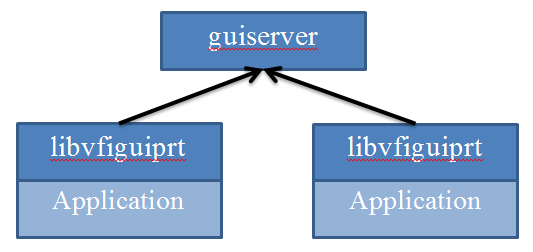
The DirectGUI system is composed of the following deliveries:
| File | Purpose |
|---|---|
| gui.h | GUI system header file with exported definitions, functions, etc. |
| gui_error.h | GUI system header file with exported error codes |
| jsobject.h | GUI system header file with exported JSON interfaces |
| libvfiguiprt.a | GUI system client library for use with guiserver/guiprtserver |
| libvfiguiprt.so | GUI system client shared library for use with guiserver/guiprtserver |
| libfltkgui.a | GUI system implementation library for monolithic applications (V/OS only) |
| guiserver | GUI server binary |
The header files can be found in the ‘html’ directory.
An application has to be linked either with libvfiguiprt or with libfltkgui. libfltkgui.a is not supported on Verix because of the large amount of dependencies to other libraries.
ADKGUI uses C++ overloading to provide different variants of a function so that parameters can be omitted that have a default value. Unlike C++ default parameters these need not be found at the end of the parameter list. The following parameters are affected:
On V/OS the GUI service runs as a separate process with privileged rights to access HTML and graphical resource files accompanied with the applications. Different applications typically run in separate user spaces. On Verix, the GUI service runs as a separate task, usually in the same group as the client application task, which allows the HTMLPrinter service to access the HTML and resource files.
Applications link with the GUI client library to access the GUI API functions. They can either pass a URL to the UI resource files or send HTML documents directly. They also pass dynamic data over the inter-process interface into the GUI service. The GUI server hen returns the result from the executed dialogs.
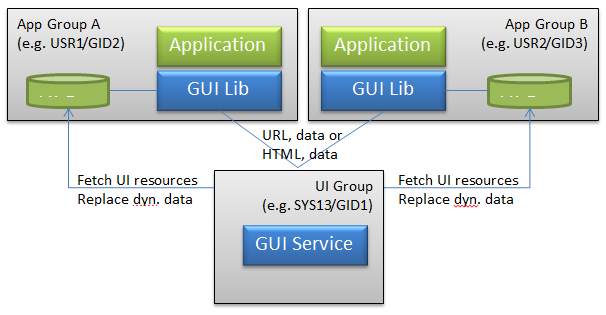
UI resources are assumed to be authentic (i.e. there is no additional authentication of UI resources within the GUI service). If required, the application provides the additional authentication for external resources.
For this setup applications need to link with libvfigui library of the GUI system.
The GUI server and client library use the environment variable GUI_DISPLAY to control the port used for communication between the two entities. Both, named pipes and TCP may be used for communication. For this GUI_DISPLAY either contains the absolute path name of the named pipe or the entry ‘<hostname>:<port-offset>’. The base for the <port-offset> is 5900. On V/OS, the overall default is “:0” (TCP on localhost port 5900) and on Verix it is “VFIGUIPIPE” (named pipe).
Meaning of field <hostname> for TCP connections:
For GUI server this field is ignored. For Verix and V/OS non-development devices, this port only accepts connections from localhost (<hostname> is always “127.0.0.1”) for security reasons. V/OS development devices have external access enabled (<hostname> is always “0.0.0.0”).
For GUI client library field <hostname> is not restricted and specifies the IP address or hostname of the GUI server, which library should connect to. An empty field <hostname> means connection is established to localhost (default on V/OS).
Examples:
The GUI service can also be used as static library to be linked with an application process. In this setup the application links directly with the libfltkgui library of the GUI system.
User interface resources are describing the content, layout and behavior of user dialogs.
The following items are supported:
Resources accompany the application packages (i.e. they reside in the same user space as the related application).
By default, UI resource files are looked up in the “www/<platform>” directory. The platform is automatically determined by use of an OS function (e.g. for VX520 this is "VX520").
If this directory does not exist, UI resources are looked up in a directory whose name is constructed based on the type of display and keyboard. Its name is constructed as follows:
<width> and <height> are the width and height of the display in pixels. <color> is either ‘M’ for monochrome displays or ‘C’ for color displays. <numkeys> is the number of keys on the keypad. In case it cannot be determined ‘0’ is used. <touch> is either ‘T’ if a touch display is present or ‘N’ if not.
Examples:
Mx925: 800x480C13T
VX520: 128x64M24N
The advantage of using this scheme is that several different terminals may share the same set of dialogs. For example, VX520C and VX675 have the same display and keyboard layout and therefore, will look up files in the same folder.
On V/OS the resource files and the application are usually located in home folder of the user. For instance, if an application is installed on VX520 under /home/usr1 the default the resource directory is:
On Verix eVo, the default resource folder is in group 15 on drive I. For instance, if an application is installed on VX520, the default resource directory is:
Please note: Since version 2.1.1 of ADKGUIPRT, resource files are additionally looked up in the working directory of the running UI application. This means, if www folder does exist in applications group folder, this location is used in favor to group 15. For instance, if an application runs in group 1 on VX520, the following default resource directories can be used:
The default location can be changed by using the UI_PROP_RESOURCE_PATH property of uiSetPropertyString().
An optional prefix may also be set using the UI_PROP_FILE_PREFIX property of uiSetPropertyString(). This prefix is prepended to the file names provided for URLs and template names. If it contains one or more '/', then it will add new directory levels to the path. Otherwise, it only modifies the file name.
With prefix, the resulting file name is: “www/<platform>/<prefix><filename”
Since version 1.3.0, the UI system supports a default directory “www/default” for resource files. These can be considered as fallback in case a dialog is not found in the regular resource directory (e.g. because www/<platform> does not exist). Standard resource folder “www/<platform>” and default resource folder “www/default” can also be used in parallel and files that are not found in the platform specific folder are secondly looked up the default resource folder. For instance, this is useful for multi-language catalog files that should be used for all platforms, whereas HTML files are still located in standard folder.
The following files types are supported by default resource folder:
Please note that image resource files location must be relative to the corresponding HTML document or template file. CSS style sheet files are not supported, since its location is specified in GUI system configuration file.
The default location of the default resource directory can be changed by using the UI_PROP_RESOURCE_DEFAULT_PATH property of uiSetPropertyString().
UI_PROP_RESOURCE_PATH and UI_PROP_RESOURCE_DEFAULT_PATH. For instance, on V/OS the file access is restricted by file system and security service grsecurity. Resource folder should always be in system group and should be located under /home/usrX/www (see chapter Packaging Resource Files on V/OS). Otherwise access by guiserver might be restricted according security policy of grsecurity.If the specified resource files cannot be found, the GUI system will automatically generate an error message on the screen. This is helpful during application development and testing and should not show up in a live system if resource files are provided correctly.
Example:
Multi-Application-Controller (MAC) is used to run several applications in parallel on a terminal. Since version 2.5.0 the UI system has added support to lookup resources in a separate subdirectory for each application to avoid resource location conflicts. For this, MAC sets up the environment variable GUIPRT_APPNAME, which provides a name for each application that is used for the subfolder appname:
or
GUIPRT_APPNAME is automatically considered during startup of an application so that most of the MAC handling is transparent to the application. Please note that the variable is just used to set up the default values for UI_PROP_RESOURCE_PATH and UI_PROP_RESOURCE_DEFAULT_PATH. Once an application has set the properties during runtime, value of GUIPRT_APPNAME is ignored.
Standard HTML elements are used to define the layout of dialogs.
The HTML support in DirectGUI is limited. All unknown HTML tags are ignored and text without HTML formatting is displayed.
The following HTML tags are supported with DirectGUI:
| Attribute | Description |
|---|---|
| - | - |
| Attribute | Description |
|---|---|
| dir | direction (rtl, ltr or auto) |
| Attribute | Description |
|---|---|
| dir | direction (rtl, ltr or auto) |
| Attribute | Description |
|---|---|
| - | - |
| Attribute | Description |
|---|---|
| style | inline CSS style |
| Attribute | Description |
|---|---|
| action | Event emitted on activation of the element (see Event Handling) |
| autofocus | Element gets initial focus |
| name | name |
| nofocus | Prevent that the button gets focus (DirectGUI) |
| style | inline CSS style |
| value | Returns value |
| Attribute | Description |
|---|---|
| name | name |
| style | inline CSS style |
| Attribute | Description |
|---|---|
| dir | direction (rtl, ltr or auto) |
| name | name |
| style | inline CSS style |
| Attribute | Description |
|---|---|
| - | - |
| Attribute | Description |
|---|---|
| size | Font size |
| face | Font face |
| color | Text color |
| Attribute | Description |
|---|---|
| - | - |
| Attribute | Description |
|---|---|
| - | - |
| Attribute | Description |
|---|---|
| - | - |
| Attribute | Description |
|---|---|
| src | URL of the image. |
| alt | alternate text |
| align | alignment (supported: top/middle/bottom) |
| Attribute | Description |
|---|---|
| action | Event emitted on activation of the element (see Event Handling) |
| allowed_chars | Allowed characters for input (GUI specific HTML extension) |
| mask | Input mask (GUI specific HTML extension) |
| maxlength | Maximum input length |
| name | Name of the input field |
| precision | Number of decimal digits (GUI specific HTML extension, for type number) |
| size | Size of the input field in characters |
| type | Input type (number, mask, text, password, radio, checkbox) |
| autosize | If set use the largest font so that the value fits the input field. The font size specified via CSS is used as minimum font size |
| prefix | prefix to be displayed |
| postfix | postfix to be displayed |
| placeholder | placeholder that is displayed if the input field is empty or in case of type number contains ‘0’ |
| autofocus | element gets initial focus |
| dsep | decimal separator |
| tsep | thousands separator |
| sepkey | If provided with a function key, numeric input starts with the integer part of the number and pressing the function key switches to the fractional part. |
| nocaret | Do not display the input cursor. |
| readonly | The value is only displayed and cannot be changed |
| Attribute | Description |
|---|---|
| - | - |
| Attribute | Description |
|---|---|
| type | one of 1,A,a,I,i |
| start | start value for counter |
| Attribute | Description |
|---|---|
| action | Event emitted on activation of the element (see Event Handling) |
| autofocus | Element gets initial focus |
| Attribute | Description |
|---|---|
| - | - |
| Attribute | Description |
|---|---|
| - | - |
| Attribute | Description |
|---|---|
| name | Name of the selection list |
| size | Visible size (number of option elements) |
| Attribute | Description |
|---|---|
| src | URL of the video or sound file |
| Attribute | Description |
|---|---|
| - | - |
| Attribute | Description |
|---|---|
| - | - |
| Attribute | Description |
|---|---|
| border | Border size |
| cellspacing | Space between cells |
| cellpadding | Additional space inside cells |
| Attribute | Description |
|---|---|
| width | |
| height | |
| colspan | Cell spans this number of columns |
| rowspan | Cell spans this number of rows |
| Attribute | Description |
|---|---|
| width | |
| height | |
| colspan | Cell spans this number of columns |
| rowspan | Cell spans this number of rows |
| Attribute | Description |
|---|---|
| - | - |
| Attribute | Description |
|---|---|
| - | - |
| Attribute | Description |
|---|---|
| - | - |
| Attribute | Description |
|---|---|
| autoplay | The video will start playing right from the start |
| height | height in pixels |
| loop | The video will start over again when it is finished |
| muted | The video will start with sound turned off |
| src | URL of the video file |
| width | width in pixels |
| Attribute | Description |
|---|---|
| autoplay | Sound playback will start playing right from the start |
| loop | Sound playback will start over again when it is finished |
| src | URL of the audio file |
Color Names Support:
The following color names are supported: aqua, cyan, black, blue, fuchsia, magenta, gray, green, lime, maroon, navy, olive, orange, purple, red, silver, teal, white, and yellow.
In addition, “transparent” is supported for creating transparent buttons.
Soft Hyphen Support:
Soft hyphens are used to specify a place in text where a hyphenated break is allowed without forcing a line break in an inconvenient place if the text is reflowed.
Use one of the following syntax to insert a soft hyphen.
Bi-directional text is supported, including Arabic text. Note that the selected font need to have support for the character set used.
Depending on platform, the terminal must have installed additional components to meet the applicable prerequisites for video playback.
V/OS terminals use the service libsvc_mplayer which provides hardware accelerated video playback. Video support is only available on those platforms that contain this service.
Since version 2.0.0 of ADKGUI, video playback is also supported on Verix eVo platform. The terminal must have installed AV codec component, which provides the video playback support. The download package of AV codec (dl.avcodec-X.X.X.X.zip) comes along with GUIPRT load package (guiprt-vrx-load-X.X.X-X.zip). Please note that GUIPRT server needs at least AV codec 1.0.0.9. Documentation of AV codec can be found in package guiprt-doc-video-2.0.0.zip, which is an extension of the GUIPRT documentation package. Chapter "Guidelines" contains more details about supported video formats and tools for video file conversions.
Compared to ordinary web browsers, video playback with DirectGUI has some limitations on both platforms:
<video> of HTML document is smaller than the video resolution, the video is not clipped or downscaled and the video window overlaps the region of the <video> element.<video> elements, only the first video element is rendered and played. It is also not possible to play an additional audio file (with <audio> ), while a video playback runs.HTML video example for playing video in a loop:
Please note that the source path is platform dependent. The specified path for accessing the video file on USB device (see example) only works on V/OS. On Verix, the USB device is mounted to M: drive and the path must have a certain notation (including the drive name), e.g. <source src="file://M:/verifone.ogg">.
HTML Video Widget Functions for Video Control
Some widget functions for video playback control are provided that can be called from an action statement of an event. These functions are executed in the context of the currently active HTML document and refer to the name specified for the video element:
Please refer to chapter HTML Widget Functions which lists the supported video control functions.
Performing an Action When the Video has Stopped
The following input field detects the end of the video playback:
| Definition | Documentation |
|---|---|
| <input type="videoend" style="visibility:hidden" action="yyy"> | defines a hidden input field that is triggered when any video in the dialog has ended. Action yyy specifies the action to be taken in this case. |
Example:
GUIPRT Demo and Video Support
Since the size of sample videos would blow up the GUIPRT documentation package, the video extension package (guiprt-doc-video-X.X.X-X.zip) is provided. The video package contains additional documentation and some video files with different resolutions for different displays. Please refer to the enclosed VIDEO-README.txt containing more details about required components to meet the applicable prerequisites for video playback. In addition, you can find helpful instructions for installation of sample video files for GUIPRT demo.
Depending on platform, the terminal must have installed additional components to meet the applicable prerequisites for audio playback.
V/OS terminals use the service libsvc_sound which provides sound playback. Audio support is only available on those platforms that contain this service. This service also determines the supported audio formats: Currently it supports wav and mp3.
Since version 2.13.4 of ADKGUI, audio playback is also supported on Verix eVo platform. For audio support, the terminal must have a speaker (e.g. vx690 or vx6803G) and must have installed AV codec component. The download package of AV codec (dl.avcodec-X.X.X.X.zip) comes along with GUIPRT load package (guiprt-vrx-load-X.X.X-X.zip). Please note that GUIPRT server needs at least AV codec 1.0.0.9. Documentation of AV codec can be found in package guiprt-doc-video-2.0.0.zip, which is an extension of the GUIPRT documentation package. Chapter "Guidelines" contains more details about supported audio formats and tools for audio file conversions.
Audio playback is bound to the dialog, i.e. the sound will only play as long as the dialog is active.
Compared to ordinary web browsers, audio playback with DirectGUI has some limitations:
<audio> elements, only the first audio element is played. It is also not possible to play an additional video file (with <video> ), while a audio playback runs.HTML audio example for playing a sound in a loop:
Please note that the source path is platform dependent. The specified path for accessing the sound file file on USB device (see example) only works on V/OS. On Verix, the USB device is mounted to M: drive and the path must have a certain notation (including the drive name), e.g. <source src="file://M:/sound.ogg">.
HTML Audio Widget Functions for Audio Control
Some widget functions for sound playback control are provided that can be called from an action statement of an event. These functions are executed in the context of the currently active HTML document and refer to the name specified for the audio element:
Please refer to chapter HTML Widget Functions which lists the supported audio control functions.
Performing an Action When the Sound has Stopped
The following input field detects the end of the video playback:
| Definition | Documentation |
|---|---|
| <input type="audioend" style="visibility:hidden" action="yyy"> | defines a hidden input field that is triggered when any sound playback in the dialog has ended. Action yyy specifies the action to be taken in this case. |
Example:
Cascading Style Sheets (CSS) are used to change appearance of HTML elements. For DirectGUI implementation, a limited set of CSS elements is supported.
CSS attributes can be specified directly in the HTML documents by using the inline style attribute for HTML elements. The inline style attributes overwrite styles taken from the CSS file. GUI.INI may be used for specifying a global CSS file.
| CSS Style Attribute | Description | Limitation |
|---|---|---|
| background-color | Background color | not supported for <input> |
| background-image | Background image: url() and linear-gradient() are supported. linear-gradient() only supports gradients parallel to the x- or y-axis. | not supported for <input> |
| background-position | Background position | not supported for <input> |
| background-repeat | Supported values: no-repeat, repeat-x, repeat-y, repeat | not supported for <input> |
| background-size | Scale background image. | - |
| border border-style border-top border-right border-bottom border-left border-width border-color margin margin-left margin-top margin-right margin-bottom padding padding-left padding-top padding-right padding-bottom | Table border, margin and padding properties Single properties are also supported, e.g. border-bottom-color | - |
| border-radius border-top/bottom-left/right-radius | Border radius for creating rounded corners. | Only supported for buttons and text/password/number input fields. |
| border-image border-image-slice/width/outset | Use image for decorating the border. | - |
| border-spacing | <table> | Spacing between table cells, only px supported. |
| bottom | bottom position | - |
| color | Text color | - |
| display | Display property | Only block, inline-block and table-cell are supported |
| width | Width in px or % | - |
| height | Height in px or % | - |
| font | Set font family, style, size and weight | - |
| font-family | - | - |
| font-style | - | - |
| font-size | - | - |
| font-stretch | - | DirectGUI does not support distinguishing different variants of condensed or expanded due to FLTK limitations |
| font-weight | - | bolder and lighter are always relative to “normal” |
| left | left position | - |
| line-height | Set line height | - |
| overflow | 'visible': The overflow is not clipped, it renders outside the element's box (default) 'hidden': The overflow is clipped. 'auto': Scrollbars are added autmatically if required to scroll the content. 'scroll': Scrollbars are always added to scroll the content 'autogrid': Like 'auto' just that the scrolling snaps in at multiples of the element width/height 'ticker': Automatically scroll oversized content horizontally. Scrolling right to left alternates with scrolling left to right 'ticker-rl': Automatically scroll oversized content horizontally from right to left. 'ticker-lr': Automatically scroll oversized content horizontally from left to right. 'marquee': same as marquee-rl. 'marquee-rl': Scroll content horizontally from right to left. Scrolling is performed independent of content width. 'marquee-lr': Scroll content horizontally from left to right. Scrolling is performed independent of content width. 'ticker', 'ticker-rl', 'ticker-lr', 'marquee', 'marquee-rl' and 'marquee-lr' optionally take a speed parameter that specifies scrolling in pixels per second. Default speed is 50 pixels per second. Example: 'ticker-lr 100'. | overflow is only supported for <div> |
| position | Position static, relative, absolute or fixed | - |
| right | right position | - |
| text-align | Horizontal alignment(left, center, right) | - |
| top | top position | - |
| vertical-align | Vertical alignment (top, middle, bottom) | - |
| white-space | White-space (normal, nowrap, pre-line, pre-wrap, pre) | - |
| z-index | Determines which element is shown in front if elements overlap | Only supported for block elements like e.g. <div> |
overflow variants are not supported by WebGUI:DirectGUI supports descendant selector and child selector, sibling selectors are not supported. The following elements cannot be used as ancestor in a descendant or child selector rule:
That is the following rule is not supported
Whereas the following rule is supported
Currently the following limitations exist in DirectGUI when using CSS:
rgba(), hsl() and hsla() are not supportedGlobal CSS file: All supported CSS properties may be used in the global CSS file and work the same way as when using the style attribute. For CSS selectors the following restrictions apply:
CSS pseudo class selectors have additional restrictions: Only setting colors (e.g. background color) and background-images considers pseudo classes. In particular, it is not possible to change the size of an object using pseudo classes. Other properties are ignored.
The GUI system supports a limited set of events that can be processed independently of the application business logic. This event mechanism can be used to keep GUI logic largely independent from the application business logic.
The actions taken on behalf of the dialog event are specified in the HTML with the following syntax:
| Syntax | Description | ||||||||||||||||||||||||||||||||||||||||||||||
|---|---|---|---|---|---|---|---|---|---|---|---|---|---|---|---|---|---|---|---|---|---|---|---|---|---|---|---|---|---|---|---|---|---|---|---|---|---|---|---|---|---|---|---|---|---|---|---|
| <HTMLelement action="return x"> | return from uiInvoke() or uiInvokeURL() client API functions to the caller and set x as integer return value for this function. Additional parameters may be appended to the URL and passed to GUI client by using the following notation: return x?key1=value1&key2=value2 See the ‘load’ action for more information. | ||||||||||||||||||||||||||||||||||||||||||||||
| <HTMLelement action="load url"> | load and invoke another HTML document. The HTML document is invoked by GUI client library automatically after the current dialog has terminated and returned its results from the server. Additional parameters may be appended to the URL and passed to GUI client by using the following notation: url?key1=value1&key2=value2 Note: The key-value pairs (separated by &) are stored to value map of uiInvoke() / uiInvokeURL() function. The map is directly passed to the dialog that will be loaded from the specified url. In this way, data may be transferred from current HTML document to subsequent dialogs. For all dialogs of the sequence the key-value pairs are added to the map, whereas existing keys are overwritten. After the dialog sequence has finished, the application may access the value map and read the key-value pairs that were stored by the dialogs before. Please note that it is mandatory to escape characters like & or whitespaces, if used in keys or a values as follows: url?key1=Hello%20World&key2=foo%26bar The following table contains a list of characters for which it is recommended to use escape codes:
| ||||||||||||||||||||||||||||||||||||||||||||||
| <HTMLelement action=”returnwait x”> | Similar to ‘return’, see ‘Typeahead support’ below | ||||||||||||||||||||||||||||||||||||||||||||||
| <HTMLelement action=”loadwait url”> | Similar to ‘load’, see ‘Typeahead support’ below | ||||||||||||||||||||||||||||||||||||||||||||||
| <HTMLelement action="call name.func(paramlist)"> | call and execute the predefined function of the HTML element identified by name with the given parameter list. Available function names depend on the HTML element. | ||||||||||||||||||||||||||||||||||||||||||||||
| <HTMLelement action="call name.action()"> | call the action function of the HTML element identified by name |
At least one element in a HTML document must contain a "load" or "return" action in order to provide an exit point for the dialog. There is no explicit check on this provided by the UI system. As a result dialogs without these exit points stay active either infinite or exit automatically after the configured global dialog timeout.
Typeahead Support
Normally key strokes are processed as they happen. However, when switching dialogs this may result in key strokes to be dropped: The previous dialog has been finished and the next dialog is not yet ready to be shown and to process input. Now if the user types some key, then there is no use for it and it gets dropped. In certain situation this is not desired, e.g. if the user blindly operates the device and does not wait for visual feedback.
For this use case ‘returnwait’ and ‘loadwait’ have been introduced. They differ from ‘return’ and ‘load’ in that they suspend GUI and event processing until the next dialog is shown in the same region or until the layout is updated. This enables to atomically replace one dialog with another one so that keyboard input does not vanish in between two dialogs.
Since GUI and event processing is stopped, if the application fails to display the next dialog the GUI is frozen. For this reason, ‘returnwait’ and ‘loadwait’ should be used with care.
Long Button Press
Buttons support distinguishing long and short button presses on the touch screen. A button press is considered long if the button is pressed for at least 750ms and no attempt to pan is detected. In this case the action found in the attribute “action2” is performed. If “action2” is not provided then the action found in “action” is performed as fallback.
Example:
Some HTML widget functions are provided that can be called from an action statement of an event. These functions are executed in the context of the currently active HTML document.
| Function | Purpose |
|---|---|
| “menuname”.up() | move the selector of a <select> element name "menuname" one item up. |
| “menuname”.down() | move the selector of a <select> element name "menuname" one item down. |
| “menuname”.left(dist=50%) | scroll the menu to the left |
| “menuname”.right(dist=50%) | scroll the menu to the right |
| “menuname”.action() | run the action bound to the selected menu entry |
| “divname”.up(dist=50%) | scroll a scrollable <div> up |
| “divname”.down(dist=50%) | scroll a scrollable <div> down |
| “divname”.left(dist=50%) | scroll a scrollable <div> left |
| “divname”.right(dist=50%) | scroll a scrollable <div> right |
| document.up(dist=50%) | scroll the entire HTML document up |
| document.down(dist=50%) | scroll the entire HTML document down |
| document.left(dist=50%) | scroll the entire HTML document left |
| document.right(dist=50%) | scroll the entire HTML document right |
| cursor.left() | move the cursor of the active input field to the left |
| cursor.right() | move the cursor of the active input field to the right |
| cursor.up() | move the cursor of the active input field up / select the previous menu entry |
| cursor.down() | move the cursor of the active input field down / select the next menu entry |
| focus.next() | activate the next input field/button |
| focus.previous() | activate the previous input field/button |
| focus.left() | activate the next input field/button left of the current one |
| focus.right() | activate the next input field/button right of the current one |
| focus.up() | activate the next input field/button above of the current one |
| focus.down() | activate the next input field/button below of the current one |
| active.toggle()/active.action() (action is just an alias for toggle) | toggle the state of the active checkbox/radio button or run the action bound to the active button |
| active.sendkey(value) | send key strokes to the active input field |
| “name”.sendkey(value) | send key strokes to the named input field |
| active.up() | call 'up' in the active menu |
| active.down() | call 'down' in the active menu |
| active.left() | call 'left' in the active menu |
| active.right() | call 'right' in the active menu |
| "videoname".pause() / "audioname".pause() | pause the video / sound |
| "videoname".play() / "audioname".play() | start or resume playback of the video / sound |
| "videoname".rewind() / "audioname".rewind() | rewind the video /sound to the beginning |
| "videoname".togglesound() | toggle sound output |
| audio.volume(vol) | Set volume to absolute value vol in the range 0..100 |
| audio.volume(+vol) | Increase volume by vol |
| audio.volume(-vol) | Decrease volume by vol |
cursor.left(), cursor.right(), focus.next(), focus.previous(), focus.left(), focus.right(), focus.up(), focus.down(), active.toggle() that refer to the active input field/button must be bound to invisible buttons or they will not work as expected since when visible the active widget loses focus when the accesskey is pressed before the specified action is processed. focus.left(), focus.right(), focus.up(), focus.down() may be used for some joystick-like navigation on screen. They activate the next input element in the given direction that matches best. Obviously this kind of navigation works best when the input elements are arranged in a way that is suitable for that kind of navigation.The UI system supports binding of keys on the terminal keyboard to HTML button elements. The HTML accesskey attribute is used to define the key binding specifying the key code (e.g. '1' for key 1). For functional keys like F1-F4 accesskey is specified with "&#" followed by a decimal value with ";" (see platform dependent key binding table below).
Please note that the key bindings can be defined for visible and non-visible buttons. A typical use case for non-visible buttons is assigning keys on non-touch screen hardware.
Example:
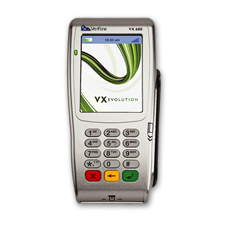
The following table provides an overview on access key values to be used for the available keys on different hardware.
| VX520 | key | access key value |
|---|---|---|
| F1 | '' |
| F2 | '‚' | |
| F3 | 'ƒ' | |
| F4 | '„' | |
| M0 | '…' | |
| M1 | '†' | |
| A (Alpha) | '‡' | |
| M2 | 'ˆ' | |
| M3 | '‰' | |
| 0 - 9 | '0' - '9' | |
| * | 'Š' | |
| # | '‹' | |

| '' | |

| '' | |

| ' ' |
| VX675 / 520C | key | access key value |
|---|---|---|
| M0 | '…' |
| M1 | '†' | |
| Middle | '‡' | |
| Up | '' | |
| Left | '‚' | |
| Right | 'ƒ' | |
| Down | '„' | |
| M2 | 'ˆ' | |
| M3 | '‰' | |
| 0 - 9 | '0' - '9' | |
| * (-) | 'Š' | |
| # (+) | '‹' | |
|
| '' | |
|
| '' | |
|
| ' ' |
| VX680 / 820 | key | access key value |
|---|---|---|
| 0 - 9 | '0' - '9' |
| * | 'Š' | |
| # | '‹' | |
|
| '' | |
|
| '' | |
|
| ' ' |
| VX600 / e315 / e335 | key | access key value |
|---|---|---|
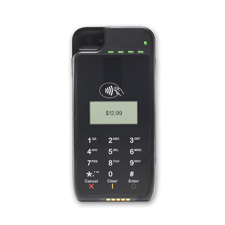
| 0 - 9 | '0' - '9' |
| * | 'Š' | |
| # | '‹' | |
|
| '' | |
|
| '' | |
|
| ' ' |
For more information on keypad usage, please refer to Keypad Activation for PAYware Mobile Devices on Verix.
| Mx9xx | key | access key value |
|---|---|---|
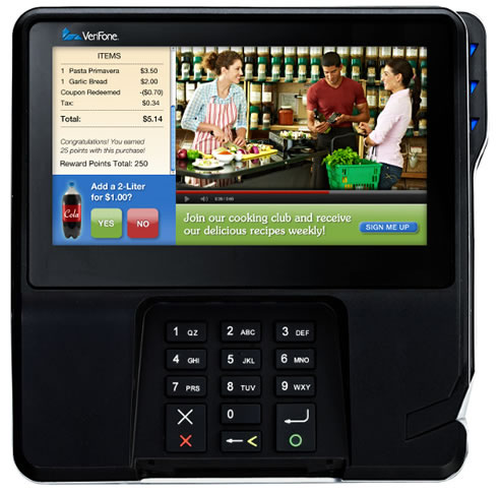
| 0 - 9 | '0' - '9' |
|
| '' | |
|
| '' | |
|
| ' ' |
| Ux100/Ux100 | key | access key value |
|---|---|---|
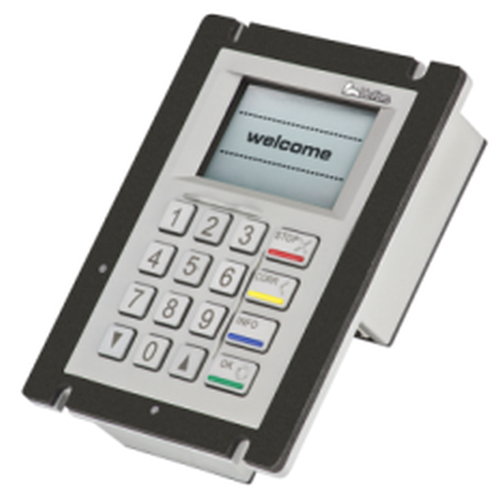
| 0 - 9 | '0' - '9' |
DOWN (
| 'ˆ' | |
UP (
| '†' | |

| '' | |

| '' | |

| 'Œ' | |

| ' ' |
| e355 | key | access key value |
|---|---|---|
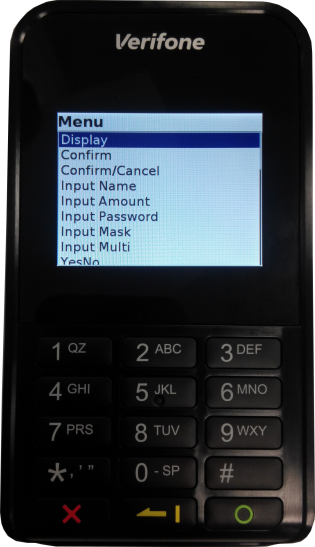
| 0 - 9 | '0' - '9' |
| * | 'Š' | |
| # | '‹' | |
|
| '' | |
|
| '' | |
|
| ' ' |
| VX690 | key | access key value |
|---|---|---|
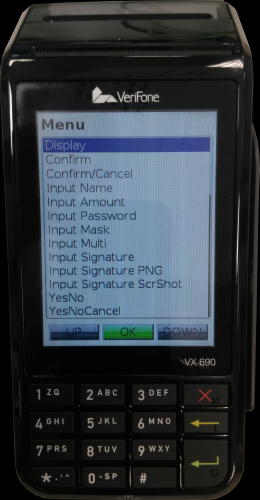
| 0 - 9 | '0' - '9' |
| * | 'Š' | |
| # | '‹' | |
|
| '' | |
|
| '' | |
|
| ' ' |
| P200/V200 | key | access key value |
|---|---|---|
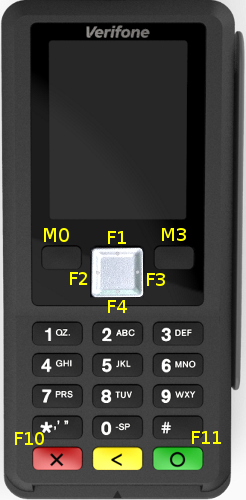
| M0 | '…' |
| F1 | '' | |
| F2 | '‚' | |
| F3 | 'ƒ' | |
| F4 | '„' | |
| M3 | '‰' | |
| 0 - 9 | '0' - '9' | |
| F10 | 'Š' | |
| F11 | '‹' | |
|
| '' | |
|
| '' | |
|
| ' ' |
| P400/V400 | key | access key value |
|---|---|---|
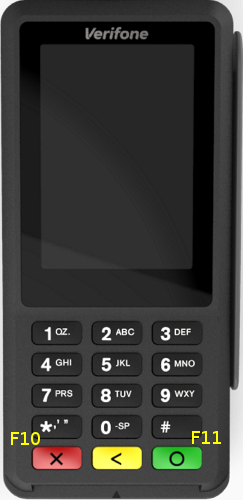
| 0 - 9 | '0' - '9' |
| F10 | 'Š' | |
| F11 | '‹' | |
|
| '' | |
|
| '' | |
|
| ' ' |
For <button> elements more than one key may be specified in “accesskey” to set up a key combination. The keys have to be separated by ‘+’. Key combinations only work for invisible buttons (visibility:hidden).
Example display status screen when pressing <Enter>+’1’:
Virtual keyboard support in DirectGUI works as follows:
“active.sendkey()” to generate key strokes. sendkey takes the decimal Unicode value of the character to be inserted as parameter.uiLayout(). The coordinates of the region may be specified in gui.ini and referenced by name.uiInvokeURLDetached() which runs the dialog in the background. UI_PROP_TIMEOUT to -1 (the default value) or by adding an infinite timeout to the virtual keyboard dialog using <input type=’timeout’ value=’-1’>. Failing to do so, the virtual keyboard will stop working after the timeout elapses.| Control Key | Key Code |
|---|---|
| Backspace | 8 |
| Tab | 9 |
| Enter | 13 |
| Escape | 27 |
| Home | 16 |
| Cursor Left | 17 |
| Cursor Up | 18 |
| Cursor Right | 19 |
| Cursor Down | 20 |
| Page Up | 21 |
| Page Down | 22 |
| End | 23 |
Dynamic Keyboard Switching
ADKGUI sends the IPC notification "_uiInputFocus" when focus is given to or removed from an input field. This can be used to dynamically show a virtual keyboard whenever the user clicks into an input field and remove it when focus is withdrawn from the input field . The _uiInputFocus notification sends the following information:
| Field | Value | Description |
|---|---|---|
| focus | true/false | true if an input field has focus, false if the focus has been removed from an input field |
| type | alphanumeric/numeric | This is only sent if an input field has gained focus, not when losing focus. It indicates which kind of keyboard should be shown. |
A global dialog timeout property UI_PROP_TIMEOUT for all dialogs can be set using uiSetPropertyInt() call. It applies to any dialog invoked using the uiInvoke() and uiInvokeURL() or one of the other standard dialog client API functions. The API functions return with a UI_ERR_TIMEOUT value if the global timeout expires.
Each dialog definition may have one HTML element that specifies the timeout for the specific dialog and one HTML element that specifies the idle timeout. An associated action can be provided also. The HTML <input> element defines a hidden input field which specifies the timeout behavior of the dialog.
Setting the timeout using an HTML <input> element disables the global timeout set by UI_PROP_TIMEOUT.
Setting the timeout to a negative value disables the global default timeout (i.e. using an infinite timeout).
| Definition | Documentation |
|---|---|
| <input type="timeout" style="visibility:hidden" value="xxx" action="yyy"> | Defines a hidden input field that acts as timeout specifier for the dialog. duration xxx specifies the timeout value in seconds unless unit ‘ms’ is given. action yyy specifies the action to be taken when timeout expires (see Event Handling) |
| Definition | Documentation |
|---|---|
| <input type="idletimeout" style="visibility:hidden" value="xxx" action="yyy"> | Defines a hidden input field that acts as idle timeout specifier for the dialog. duration xxx specifies the timeout value in seconds unless unit ‘ms’ is given. action yyy specifies the action to be taken when timeout expires (see Event Handling) |
Example:
HTML resource files may contain placeholders for dynamic data elements. These placeholders are replaced before actual HTML rendering process takes place. The content is obtained from the key value map provided by the application (see section Passing Data to/from Dialogs).
The following syntax (XML processing instruction syntax) is supported at any place of the HTML file:
| Definition | Documentation |
|---|---|
| <?var name?> | this token is replaced with the value of a name/value pair provided in the uiInvoke() or uiInvokeURL() client API functions |
| <?varhtml name?> | this token is replaced with the value of a name/value pair provided in the uiInvoke() or uiInvokeURL() client API functions. The value may contain HTML code. |
| <?foreach name|prefix|body|postfix?> <?foreach name|prefix|body|postfix|empty?> | This token is replaced with the content of the array found in 'name'. The array has to be JSON encoded and may contain objects with several members. The replacement works as follows: If the JSON encoded array is empty, then the token is replaced by 'empty'. If the JSON encoded array is not empty, then the token is replaced by:
|
| <?include filename?> | This token is replaced by the content of file filename. The file is looked up relative to the current file or to the resource folder when HTML was provided directly. |
| <?ifexist name body?> <?ifnexist name body?> | This token is replaced by body if the variable ‘name’ exists/does not exist in the map of name/value pairs. body may contain HTML tags with "<>" replaced by "()", e.g. use "(div)" instead of "<div>". If "(" or ")" should not be replaced, escape it using "\". |
| <?ifeq name value body?> <?ifneq name value body?> <?ifgt name value body?> <?ifge name value body?> <?iflt name value body?> <?ifle name value body?> | This token is replaced by body if comparing the content ‘s’ of the variable ‘name’ with the string ‘value’ matches according to the following rules:
|
| <?ifz name body?> <?ifn name body?> | This token is replaced by body if the variable ‘name’ is an empty (ifz) or a not empty string (ifn). If the variable does not exist in the map of name/value pairs, name is taken as an empty string. body may contain HTML tags with "<>" replaced by "()", e.g. use "(div)" instead of "<div>". If "(" or ")" should not be replaced, escape it using "\". |
| <?ifin name val1 val2 body?> | This token is replaced by body if the variable ‘name’ is within the numeric interval val1...val2. Values are treated as integers for comparison. body may contain HTML tags with "<>" replaced by "()", e.g. use "(div)" instead of "<div>". If "(" or ")" should not be replaced, escape it using "\". |
| <?ifnotin name val1 val2 body?> | This token is replaced by body if the variable ‘name’ is not within the numeric interval val1...val2. Values are treated as integers for comparison. body may contain HTML tags with "<>" replaced by "()", e.g. use "(div)" instead of "<div>". If "(" or ")" should not be replaced, escape it using "\". |
Unless <?varhtml name?> is used when inserting values, HTML special characters are escaped so that they will be displayed on screen (e.g. ‘<’ will be substituted by ‘<’). The application may not break the HTML structure but will also not be able to insert HTML tags via this mechanism. To dynamically insert HTML tags, <?varhtml name?> must be used instead.
Example:
The GUI system supports rendering barcodes.
The barcode can be specified in the HTML files using the following XML processing instruction:
| Type | Description |
|---|---|
| inter-2/5 | INTERLEAVE 2/5 barcode |
| ean-13 | EAN-13 barcode |
| ean-8 | EAN-8 barcode |
| upc-a | UPC-A barcode |
| upc-e | UPC-E barcode |
| code-128 | code-18 barcode |
| code-128r | code-18 barcode rotated by 90 degrees (printed top to bottom) |
| aztec-x | Aztec code, x represents the symbol’s part (%)allocated for error correction words |
| aztec | Aztec code, with 23% error correction words |
| qr-l | Level L, 7% of codewords can be restored |
| qr-m | Level M, 15% of codewords can be restored |
| qr-q | Level Q, 25% of codewords can be restored |
| qr-h | Level H, 30% of codewords can be restored |
Data format:
The type and length of supported data depends on the type of the barcode (e.g. EAN-13 only supports digits). Check the corresponding standards for more information. The data is percent-encoded, i.e. special characters are escaped by “%hex”. Null bytes are currently not supported.
Example: %20 equals to a space character.
maxwidth, maxheight:
This specifies the maximum width and height (in pixel) of the generated barcode image.
Dynamic data:
To pass dynamic data for a barcode the <?barcodevar … ?> syntax has to be used. The variable name refers to an entry in the value map passed on to uiInvokeURL().
Example: EAN barcode with a maximum size of 384x60 pixels containing the data ‘4104640025303’:
ADKGUI comes with a set of different scripting processors pre-installed for handling dynamic data (e.g. <?varhtml … ?>). For more demanding applications additional libraries can be used to register a XML processors that preprocess the HTML code (e.g. for JavaScript, see chapter JavaScript support). Each script processor will be invoked for the XML processing instruction for which it has been registered. It receives the content of the XML processing instruction along with the global key value map as input. The output of the script is inserted into the HTML document. Preprocessing happens until no more XML processing instructions are found for which XML processors have been registered.
XML processing syntax is used to run scripts that generate output on the fly. All XML processing instructions have the form:
name refers to the name of the scripting language and selects the script processor to be used. If a corresponding script processor has been found, the XML processing instruction is replaced by the output of the script, which in turn can contain HTML code or new XML processing instructions. If new XML processing instructions have been generated, these will be processed in the next pass until either no XML processing instruction remains or until an internal limit is hit that is used to break infinite recursion.
Note that the script must not contain ‘?>’ as this indicates the end of the script source code and other representations need to be used if ‘?>’ is required. For example, in JavaScript ‘?>’ can be constructed by concatenating two strings “?” + “>” which eliminates the sequence ‘?>’ from the source code.
New script processors can be installed using htmlSetScriptProcessor() that takes the name of the script language and a function pointer that is invoked to process the script.
‘name’ refers to the name in the XML processing instruction (i.e. the name immediately following ‘<?’).
The script has access to the key value map supported by most dialog functions (see Passing Data to/from Dialogs). The script may write data to two strings corresponding to stdout and stderr. The data written to the first string is inserted into the document while the second is used for error reporting.
Since version 2.1.1 the XML processor for JavaScript/ECMAScript is part of standard GUIPRT distribution package. The library libjsproc is provided as static or as dynamic library as a kind of plugin for V/OS, V/OS2 and Verix platform. Following files and packages are available:
V/OS:
jsproc.h, libjsproc.a, libjsproc.so (part of development package guiprt-vos-dev-X.X.X-X.zip)dl.libjsproc-X.X.X-X.tar (part of load package guiprt-vos-load-X.X.X-X.zip)V/OS2:
jsproc.h, libjsproc.a, libjsproc.so (part of development package guiprt-vos2-dev-X.X.X-X.zip)dl.libjsproc-X.X.X-X.tar (part of load package guiprt-vos2-load-X.X.X-X.zip)Verix:
jsproc.h, libjsproc.a, libjsproc.so, libjsproc.vsl (part of development package guiprt-vrx-dev-X.X.X-X.zip)dl.libjsproc-X.X.X-X.zip (part of load package guiprt-vrx-load-X.X.X-X.zip)JavaScript has to be added manually by the application before it can be used like this:
Furthermore, the address of a local Http proxy should be set like this:
In addition the program need to be linked against one of the libjsproc library variants. Header files and libraries for linking are found in the js development package. After that, JavaScript scripts can be provided inside the <?js … ?> XML processing instruction. The XML processing instruction is replaced by the output of the JavaScript script that was written to stdout using print(). The key value map that was passed on to e.g. uiInvokeURL() is passed on to the script as object “ARGV”. Values written to this object are passed on to the dialog and are also returned to the application.
The script may generate other XML processing instructions and these will be processed in another pass over the document. This can be used, for example, to insert barcodes or translated texts into the document.
The following example inserts all keys and values as is into the HTML document:
For security reasons JavaScript processing is done on client side. This ensures that it is running with the same permissions and privileges as the main application and cannot be used to gain additional permissions which could present a security risk.
The scripting engine internally uses Duktape (http://www.duktape.org) which conforms to ECMAScript version 5.1.
The following extensions have been added to JavaScript for interfacing with ADKGUI:
| Element | Description |
|---|---|
| ARGV | Object used for passing a flat map of key-value pairs between the application and the script. Values are restricted to basic types, objects cannot be passed. |
| print() | Takes an arbitrary number of parameters. Each parameter is printed to stdout, which goes into the HTML document. |
| console.log() | Takes an arbitrary number of parameters. Each parameter is printed to the GUI Viewer JavaScript console window. |
| XMLHttpRequest() | A subset of the standard XMLHttpRequest() object is supported. The following properties and methods are provided:
There is no full support of asynchronous mode: send() always blocks until the transmission is complete. Selecting asynchronous mode just activates calling the callback function provided in onreadystatechange. It will not be called for intermediate status changes but only when transfer has completed. |
| exit() | Stop processing the current script. Optionally one of the following parameters may be provided:
If a parameter is provided the dialog is not displayed, instead the action in the parameter is processed. For example using ‘exit(“return 42”)’ the dialog will return with returncode 42. Using ‘exit(“load test.html”)’ it will load dialog “test.html”. |
| notify(to, id, object, flags) | Send a notification with notification ID id to application to. The destination address may be an application ID or “1” to send it to a single application or “*” to send it as broadcast to all applications. Data in object is sent along the notification. flags passes notification flags. These are optional and may be omitted. The function returns 0 in case of success or an error code. In case of invalid parameters -12 is returned.Sending notifications is only supported if a notification callback has been installed using js::jsSetNotify(). |
| notifyAndWait(to, id, object, flags, wait_id) | Send a notification with notification ID id to application to. The destination address may be an application ID or “1” to send it to a single application or “*” to send it as broadcast to all applications. Data in object is sent along the notification. flags passes notification flags. These are optional and should be set to 0 if not used. After sending the notification the function waits for a reply with notification ID wait_id. It returns an object with two members:
|
| fs.readDir(path) | Read the directory and return an array containing the files names |
| fs.exists(path) | Returns true if path exists and false if not |
| fs.stat(path) | Obtain information about a file or directory. The following information is returned:
|
| fs.readFile(path) | Read file path and return the content |
| fs.writeFile(path,content) | Write content to file path. If the file does not exist, it is created. |
| fs.appendFile(path,content) | Append content to file path. If the file does not exist, it is created. |
| fs.rename(old,new) | Rename file from old to new |
| fs.remove(path) | Remove a file or empty directory |
| printer.printHTML(html,valuemap,landscape) | print the HTML code given in html. valuemap provides a key-value map. Landscape printing is selected by setting landscape to true. |
| printer.printURL(url,valuemap,landscape) | print the HTML code found in file url. The file name is relative to UI_PROP_PRINT_ROOT. valuemap provides a key-value map. Landscape printing is selected by setting landscape to true. |
| printer.getHTML(html,valuemap) | Obtain the resulting HTML code from HTML code given in html after substituting values from the key-value map valuemap. Images and barcodes are converted to inline images, CSS is inserted as style header so that the resulting HTML document is self contained. The function returns an object with two members:
|
| printer.getHTMLURL(url,valuemap) | Obtain the resulting HTML code from file url after substituting values from the key-value map valuemap. Images and barcodes are converted to inline images, CSS is inserted as style header so that the resulting HTML document is self contained. The function returns an object with two members:
|
| printer.getProperty(property_name) | Obtain the property property_name. The following properties are supported:
|
| log.info(message) log.info(message,details) | Send log message to CP log service at info log level. Objects passed as parameter are converted to a JSON string. message goes to the msg field and details to the aD field of the CP log message. |
| log.debug(message) log.debug(message,details) | Send log message to CP log service at debug log level. Objects passed as parameter are converted to a JSON string. message goes to the msg field and details to the aD field of the CP log message. |
| log.error(error_code, error_name, error_message) | Send log message to CP log service at error log level. Objects passed as parameter are converted to a JSON string. error_code goes to the eC field, error_name to the eN field and error_message to the msg field of the CP log message. |
| log.logAt(log_level, message, details) log.logAt(3,error_code, error_name, error_message) | Seng log message using the configurable log level log_level. Using levels 6 / 7 behave the same as log.info / log.debug. Level 3 behaves the same as log.error. In levels 0 1 2 4 and 5 the mapping of parameters to fields in the CP log message is as follows: message goes to msg and details goes to aD. |
error error codemessage description of the error| Code | Description |
|---|---|
| 1 | Invalid path |
| 2 | Failed to open the file/directory |
| 3 | Failed to create the file/directory |
| 4 | Failed to rename the file/directory |
| 5 | Failed to remove the file/directory |
| 6 | Read error |
| 7 | Write error |
| 8 | Insufficient resources, e.g., not enough memory |
| 9 | Quota exceeded |
| Error Code | Description |
|---|---|
| 0 | no error |
| -1 | Printing in progress |
| -2 | Paper jam |
| -3 | Head open |
| -4 | Paper end |
| -5 | Head too hot |
| -6 | Head over voltage |
| -7 | Head under voltage |
| -8 | function failed (generic error) |
| -9 | error during script processing |
| -10 | no printer available |
| -20 | function not supported on hardware used |
| -21 | invalid parameters passed |
| -22 | resource could not be allocated |
| -23 | file not found |
| -24 | protocol error when talking to the print service |
JavaScript limits file access to a subdirectory of the file system. The application has to make sure that this subdirectory does not contain any sensitive information that could be leaked.
JavaScript provides network access via the XMLHttpRequest object. It is considered to be used with a local http proxy installed on the terminal. This proxy provides two functions:
Since the proxy need to have access to the content of the messages for performing security checks, the provided XMLHttpRequest object does not support https/SSL. This is the task of the http proxy to provide appropriate encryption.
ADKGUI supports the use of JavaScript modules by implementing Duktape.modSearch(). Modules are looked up in the modules folder next to the platform specific folders. By default this is www/modules for standard applications or www/<app-id>/modules for CP applications. The file name is the module name plus extension ".js". Modules are loaded using the global require() function.
Example:
Variables and functions inside the module are local to the module and do not affect the global object. Modules export their symbols by assigning them to the exports object:
More information regarding module support can be found here: http://www.duktape.org/guide.html#modules
HTML template files are used to define the look of the standard dialogs. They represent the content of an HTML file that is found between <body> and </body> in a regular HTML file. Place holders are used to insert the parameter values of the standard functions into the template. The following place holders are supported:
| Definition | Documentation |
|---|---|
| <?insert text?> | This is replaced by the content of the text parameter |
| <?insert menu?> | This is replaced by a sequence of <option>...</option> that represents the menu entries passed on to uiMenu() |
Template files have a .TMPL file extension. The extension is automatically added and must not be passed to the UI functions.
Example: Menu Template
The following template demonstrates the use of template parameter described above. The dialog consists of a table with a headline that is filled using the <?insert text?> place holder. The second row of the table contains the menu. The <option> tags for that menu are filled using the <?insert menu?> place holder. The last row of the table is filled with buttons for “UP”, “OK”, “DOWN” linked to corresponding keys on the keypad using accesskey attribute and related actions using the action attribute.
Since version 1.2.0, the UI system supports using catalog files for multi-language support. By using catalog files, an application is able to separate texts from the HTML code making it possible to create language independent HTML and template files.
A catalog file contains a text map, which consists of several lines of name-value text pairs, each having the following syntax:
name represents the key for text value both separated by ‘=’. During runtime the UI system will look up name and inserts the value into the HTML document dynamically. The value should be UTF-8 encoded and allows usage of HTML elements and XML processing instructions like placeholder <?var … ?>.
Example:
The catalog file is loaded to the UI system with following API function:
The current catalog can be unloaded with filename==”” or by loading another catalog file.
By default, UI system expects catalog files in the UI resource folder (see UI_PROP_RESOURCE_PATH) as described in UI Resources : “www/<platform>”. Please note that uiSetCatalog() does not use file prefix UI_PROP_FILE_PREFIX for catalog files.
HTML and template files may access entries of the current catalog with the following dynamic data elements:
Syntax:
or
(since version 1.5.1)
The placeholder <?text … ?> (XML processing instruction syntax) is supported at any place in the HTML document and is replaced with the corresponding text from the catalog specified by name before actual HTML rendering process takes place.
In case no valid entry has been found in the catalog file, the (optional) default text is used instead of a translation. In the default text the characters ‘()’ have to be used instead of ‘<>’ to write HTML tags. For example having a bold default text would look like:
Dynamic data placeholders (e.g. <?var … ?>) may be used in the catalog file. It will be processed in a second step after inserting the text from the catalog file. For more information see Dynamic Data Placeholder in HTML Files.
Additionally (since version 1.5.1), the XML processing instruction <?textvar … ?> is provided. This allows the application to pass the catalog key name as a variable in map value (UI function parameter). In the following code example, value["hl"] stores "headline" for placeholder <?textvar hl?> used in the HTML document. In this case, the placeholder equals the following expression: <?text headline?>. Here, "headline" is used as name for the lookup.
Code Example:
It is up to the application to use one catalog file per language (e.g. de.ctlg, en.ctlg etc.) or to use different catalogs files in same language for several HTML documents.
When the uiSetCatalog() function is invoked, the catalog is applied to all subsequent UI functions calls in the current UI thread context.
Using Catalogs in Multi-Threaded Applications:
uiSetLocalProperties() affects the handling of catalog files. If thread local properties have been enabled, a thread may set its own catalog file not affecting other threads.
Catalog files are cached and are released when the last UI thread using a catalog has unloaded the catalog or has terminated.
Applications may look up a text from current catalog and use it for other purposes than HTML files. Following API function is provided for that:
The name parameter specifies the key for the text that should be found and returned. If no catalog is loaded or the text is not found in the current catalog, the function returns the string deflt (which is an empty string by default). Please note that every UI thread has its own catalog. The used catalog depends on the calling thread.
Please note that function uiGetText() has limitations over using gettext(): UI catalogs are tuned to contain HTML code, this is the reason why it is not possible to have some control characters inside (e.g. most notably, strings cannot contain newline characters \n). Thus, using catalogs is not a replacement for using gettext().
b) Multi-language Support with UI_PROP_FILE_PREFIX:
Another approach for multi-language support is the use of a file prefix to switch between different sets of HTML pages and templates.
Use uiSetPropertyString() with UI_PROP_FILE_PREFIX property for that purpose. There is no predefined set of prefixes for choosing languages. It is up to the application to define some.
c) Other Multi-language Concepts:
Optionally, it can be considered to use a gettext() based framework for language support since it is not limited to the GUI but also covers other functions such as printing or sending texts to remote devices (e.g. electronic cash registers).
Static as well as animated images are supported. In case of DirectGUI, JPEG, PNG, BMP, PAM and (animated) GIF are supported.
Syntax:
The <img> tag has to be used to specify an image file in an HTML document. The src attribute specifies the URL of the image file relative to the current HTML document location. For DirectGUI, the URL must refer to a file on local disk.
The following input types are supported:
The name attributes of HTML <input>, <button> and <select> tags are used to provide a unique name to an interactive element.
The action attribute is used to specify actions such as dialog exit points, references to other dialogs or an internal dialog action to be triggered (see Event Handling).
At least one element in an HTML document must contain a "load" or "return" action in order to provide an exit point for the dialog.
The name of the input elements links to the key value map provided during invocation of the dialog (see Passing Data to/from Dialogs). When displaying the dialog, the input fields are initialized using the value found in key value map. The name of the input element is used as a key to look up the corresponding value. When the dialog is closed, the current values of the input fields are stored back in the key value map and returned to the application.
Syntax:
This type is used for entering fixed point decimal numbers. The following attributes are supported:
DirectGUI in addition supports:
The formatting of the value depends on the configured properties for decimal point (UI_PROP_DECIMAL_SEPARATOR) and thousands separators (UI_PROP_THOUSANDS_SEPARATOR).
The input value is returned as string without any separators.
Syntax:
This type is used for entering alpha-numeric texts in insert mode with cursor. The initial cursor position is at the end of the string. The following attributes are supported:
DirectGUI in addition supports:
This type is used for entering a password. Same as type=text, except that characters are not shown in clear text, but with a configurable password character.
An optional mask may be used to provide an input mask for password input, see Mask Inputs for more details.
In order to set the password input characteristics, the following properties can be used with uiSetPropertyInt():
| Property | Description | Default Value |
|---|---|---|
| UI_PROP_PASSWORD_CHAR | Default character used to mask numeric inputs | ‘*’ |
| UI_PROP_PASSWORD_SHOW_CHAR | Time in ms that the last entered character is displayed before being masked | 0 |
Syntax:
This type is used to input a formatted string based on a mask definition in overwrite mode.
The following attributes are supported:
DirectGUI in addition supports:
Syntax:
This type is used to define a radio button group.
The name attribute of the input tag allows the user to make a selection. If the user checks a radio button, all other radio buttons with the same name are unchecked.
The radio buttons return the value of the selected radio button specified in the HTML value attribute.
Syntax:
This type is used to define a checkbox.
Checkboxes return "1" or "0" depending on whether they are checked or not.
When invoked, the parameter value may be used to initialize the default content/setting of the input fields.
Syntax:
This type is used to define a PIN input prompt. Note that the PIN is not returned to the application. In case of a successful PIN entry, just the number of entered digits is returned. In case of an error, "error" is returned. If the user presses CANCEL button, the dialog returns "cancel". A PIN entry timeout detected in the security device returns "timeout" and PIN bypass returns "bypass". The PIN itself is stored in a secure place for further processing.
The following attributes are supported:
In order to set the PIN input characteristics the following properties can be used with uiSetPropertyInt():
| Property | Description | Default Value |
|---|---|---|
| UI_PROP_PASSWORD_CHAR | Default character used to mask numeric inputs | ‘*’ |
| UI_PROP_PIN_AUTO_ENTER | Ends PIN entry when maximum number (maxlength) of allowable PIN digits are entered | 0 (disabled) |
| UI_PROP_PIN_CLEAR_ALL | Clear all entered PIN digits when CLEAR key is pressed. Else clear only last entered digit. | 0 (disabled) |
| UI_PROP_PIN_BYPASS_KEY | Key code of key used for PIN bypass. Allows pressing the specified key before any digit was entered to bypass the PIN entry. Following key codes are supported: 0: bypass disabled 13: ENTER key 8: CLEAR (BS) key | 0 (disabled) |
| UI_PROP_PIN_ALGORITHM | Selects the used PIN algorithm. Supported values: value used for iPS_SelectPINAlgo(). Use definitions of enums like EMV_PIN. | EMV_PIN |
| UI_PROP_PIN_INTERCHAR_TIMEOUT | Inter character timeout in milliseconds for PIN input | 0 (disabled) |
IFD_PresentClearTextPIN() ) needs to be done in the same OS task that initially has called the GUI system to invoke the PIN input dialog. In addition, it is recommended to use synchronous API functions only (e.g. uiInvoke()) to display the PIN entry dialog, since uiInvokeAsync() / uiInvokeWait() with a specified timeout and uiInvokeCancel() do not work. These limitations were fixed since ADKGUIPRT 2.4.0, which supports the "server side PIN entry" allowing to use asynchronous API functions, too. Please note the following prerequesites for the system:*VOSADK must be set to 1, in order to make echo characters working correctly. This OS environment variable must be available at terminal startup and cannot be set by application during runtime (OS limitation)GUI_SVRPIN must be set to 1 (for ADKGUIPRT > 2.4.0). This environment variable was introduced for the case that an application can use *VOSADK, but not the "server side PIN entry".On devices that do not have a real keypad PIN entry has to happen via a virtual keypad on the touch screen. The input field is the same as for normal PIN entry (see previous section). To protect PIN input a virtual keypad has to be used that uses a special mode to directly process PIN input in the security module. This is accomplished by using the pinkey attribute to mark buttons as PIN entry buttons and define the ASCII value to be returned by them.
A virtual keypad could look like this:
The keypad must define all keys '0'-'9', Cancel (), OK ( ) and Correction ().
Syntax:
This type is used to define a signature capture input field. Depending on the output attribute, different ways exist of returning the signature data. The following values of output are supported:
The size of the signature capture input field may be configured using CSS width and height attributes. The line width may be controlled using the linewidth attribute, taking the width in pixels. The default width is 1. For geometric symmetry reasons even line widths are increased by one to get an odd line width when generating TIFF or PNG images, e.g. setting line width to 2 creates the same output as setting it to 3.
Example receipt with signature on top:
Syntax:
Buttons may be specified using the HTML <button> tag. The value found in the value attribute is returned as return value of the dialog.
Syntax:
Single item selection menus are specified using the HTML <select> tag. Each selection item is specified using the <option> tag. Each <option tag> might specify its own action attribute.
Input plugins provide a way of accepting input from devices like barcode or card readers. Plugins are shared libraries that need to be installed in the plugins directory next to guiserver/guiprtserver. The name of the shared library is constructed as follows: input_<plugin-name>.so (non-Verix) or input_<plugin-name>.vsl (Verix).
Only the following characters are allowed in the plugin name: 'a'-'z', 'A'-'Z', '0'-'9', '_', '-'
The plugin name and options are passed in the plugin attribute. The plugin name is separated by whitespace from the plugin options. The plugin options are passed as string to the input plugin. The format of the options is dependent on the input plugin. Plugin options may contain arbitrary characters including whitespace.
The value of the input element is set to the value returned by the input plugin (e.g. it contains the read barcode). If present, the action is triggered when some input has been captured.
Syntax:
Syntax:
This input type only inserts data into the returned key value map. It does not show any input field.
When creating HTML documents for a terminal, note that the terminal has much less computing power compared to a desktop computer or even a smart phone. HTML pages and style sheets must be properly designed to avoid resource heavy tasks. The following lists some tweaks to speed up the display of dialogs:
The GUI system has a gui.ini file stored in the resource folder (–> www/<platform>/gui.ini) that provides global configuration and startup parameter for the system. This file has Windows INI-file format with sections and parameter value pairs.
The gui.ini file is automatically read on startup of the program and when modifying the property UI_PROP_RESOURCE_PATH. In case the application has modified gui.ini it has to call uiReadConfig() to re-read the file. Note that only properties are updated that have not been set using uiSetPropertyString/Int() or uiLayout().
The standard font and font size can be adjusted in the [font] section.
Example:
The decimal and thousands separator can be adjusted in the [input] section.
Example:
The GUI system supports alphanumeric inputs through pressing hard keys multiple times. Each key can be assigned with a number of characters that are selected in given order when pressing the key multiple times during alphanumeric inputs.
The definition of this alphanumeric keyboard is provided in the section [keymap] of the gui.ini file.
Example:
To use ‘*’ and ‘#’ for character input, add the following rules:
Without these rules the keys only act as a function key.
Please note that the allowed_chars attribute for input fields operates as filter on the keymap.
Alpha Key Support
On some devices (e.g. vx520) the keyboard comes along with an alpha key, which is intended to be used for alpha-numeric inputs. In order to support this special input mode, the section [keymap] of GUI configuration file gui.ini is extended by a new entry mode (since ADKGUIPRT 2.0.2):
By adding this special entry to the map, the input mode for alpha-numeric text fields can be configured. Following values will be supported for entry mode:
cellphone gui.ini are selected by multiple short key presses (mode already implemented in ADKGUIPRT). If entry is mode missing, cellphone is the default. 2, a. If the inter-key timeout expires or another key is pressed, the letter 'a' is skipped and a new sequence is started.alpha <GUI keycode> This mode enables alpha-numeric input with the alpha key. Value <GUI keycode> specifies the associated keycode, which is used for the alpha key. Thus, alpha key support is not restricted to a special key, but any other key could be used for this purpose. Values for <GUI keycode> are the same as already used for attribute accesskey in input elements, which are listed in Keyboard Binding. Usually <GUI keycode> is 135, which stands for the physical alpha (this is valid to all related devices).gui.ini. 'b', the user user need to press the following key sequence: 2, alpha, alpha. This sequence iterates the keymap of entry 2 and the cursor of input field in the display shows the sequence: 2, a, b. <GUI keycode> must always contain a valid keycode. No check for existence of the alpha key is implemented. Specifying an invalid keycode (e.g. a not existing key), the selection over the keymap will not work, because only the first character can be selected.mixed <GUI keycode> 'b' is displayed.'a'.To configure multiple display regions without using uiLayout(), the display regions in the [layout] section of the GUI configuration file can be specified. For more information, see Display Regions.
Syntax:
Section [layout] consists of one or more lines each standing for one display region. Region ID <reg_id> is used as key and value consists of following parameters to be separated by whitespaces:
<left> left position in pixels (+=width if negative)
<top> top position in pixels (+=height if negative)
<right> right position in pixels (+=width if negative)
<bottom> bottom position in pixels (+=height if negative)
<flags> optional region flags, numeric value as found in gui.h
Regions in gui.ini are activated by passing their name to uiLayout().
Example specifying two regions, region with ID 1 has a fixed height of 20 pixels:
DirectGUI allows specifying a CSS file in gui.ini as follows:
gui.ini file.The color of the scroll overlay can be set using:
<RGBA> is the 8-character hex color value including alpha channel. Default is: 00000060
The alpha channel is ignored on B/W devices.
The API provides functions to invoke dialogs from HTML files (based on a given URL) or HTML documents passed directly by the calling application. The dialogs can be invoked either synchronously or asynchronously.
All API functions are available as synchronous and asynchronous variants.
See reference part of this documentation for a complete list of supported functions.
The synchronous API is used to display a dialog and wait until the user has finished entering data. Since the function waits until the dialog has been finished only one dialog can be shown per thread at a time. While the dialog is shown the thread is blocked and cannot perform some other tasks.
Example for a synchronous API:
Most synchronous functions offer the use of a callback function. This callback function is invoked about 5 times a second and can be used to cancel the current dialog: If the callback returns false the dialog is cancelled, if it returns true the dialog continues to be displayed.
Using the asynchronous API displaying the dialog and reading the result has been split in two separate parts. This allows displaying more than one dialog per thread and allows processing of data in the background without having to create a new thread.
Two modes of operation are supported:
uiInvokeWait or similarThese two modes cannot be combined. Either the first or the second is used. The distinction is made by passing a pointer to a callback function or by passing NULL.
Asynchronous API Using Wait Function
This mode of operation used the wait function that corresponds to the asynchronous invocation function, e.g. using uiInvokeURLAsync with uiInvokeWait. The asynchronous function returns a transaction ID that is used in the wait function to wait for the result of the dialog. As long as UI_ERR_WAIT_TIMEOUT is returned, the dialog has not been finished within the specified timeout. In this case the wait function has to be invoked again to obtain the result. Compared to ADKGUI 1.x the interface of the wait functions has been simplified: Only in case of UI_ERR_WAIT_TIMEOUT the function has to be invoked again, now all other cases are handled internally and are not passed on to the application.
Instead of waiting for the result, a dialog can also be cancelled using uiInvokeCancel.
Both ui*Wait and uiInvokeCancel release the memory occupied by the dialog result.
In case the dialog result is not read some simple garbage collection has been added: Each time a new dialog is shown in the same region, a counter kept within the dialog result is increased and once it reaches a certain limit the result is considered garbage. In this case the result is deleted to prevent a memory leak.
Example for corresponding asynchronous API:
Asynchronous API Using a Callback
Instead of using one of the wait functions ui*Wait a callback can be provided to the asynchronous function, e.g.:
The callback function is invoked if new data is available regarding the dialog. The callback has the following prototype:
‘data’ is the data pointer that was passed to the asynchronous function. It is forwarded to the callback as is and can be used to provide the callback function with additional application specific data. ‘type’ refers to the reason why the callback was invoked. Currently the following cases exist:
UI_CB_UPDATE: Some input field has been updatedUI_CB_RESULT indicates that the dialog (sequence) has finished and that the result can be read.
UI_CB_UPDATE and UI_CB_STATISTICS are only generated in case the corresponding property has been activated.
In call cases the uidata object is used to obtain entered data and other information. It allows reading the following data:
Transaction ID (this is the same ID that is returned by the asynchronous function)UI_CB_RESULT and UI_CB_UPDATE If a callback function is provided uiInvokeWait and the other wait functions cannot be used and return UI_ERR_INVALID.
All interfaces allow passing a (sometimes optional) key value map to the dialog. This key value map serves several purposes:
<?var … If an application needs to have access to the input as it is typed in, it may activate update events by setting the property UI_PROP_UPDATE_EVENTS and use a callback function along the asynchronous set of dialog functions. If active each time one of the input fields changes the callback function is invoked with UI_CB_UPDATE and the updated values can be obtained using the object passed on to the callback function
uiInputPINCheck Variants as there is no intermediate value that could be returned to the application.The GUI system supports changing some properties during runtime. Refer to the uiGetPropertyInt(), uiGetPropertyString(), uiSetPropertyInt(), uiSetPropertyString() functions for that purpose.
See UIPropertyInt and UIPropertyString enumerators for supported properties.
By default the properties are global to the application. If required uiSetLocalProperties() can switch to thread local properties. In this case the current thread receives a copy of the global properties and changes only affect this thread while other threads continue to use the global set of properties.
The GUI system provides support for definition of independent non-overlapping display regions. The content of a region can be updated independently of any other regions content.
A GUI region is defined by a set of absolute coordinates and identified by a unique identifier. A default region ID is used if no region is created.
Example applications for the use of display regions might be regions for displaying
The GUI system API supports regions with the uiLayout() function call that accepts a list of region definitions and thus defines the layout of the display. Changing the layout cancels the dialogs in those regions that no longer exist.
Regions are described by the following structure:
The current region layout may be obtained using uiGetLayout();
Regions can be hidden by setting the UI_REGION_FLAG_HIDDEN flag. This may be used to temporarily hide a dialog and display another one in the same place:
Use uiGetLayout() / uiLayout() to set UI_REGION_FLAG_HIDDEN in the region to be hidden and add a new region using the same coordinates for the new dialog. If the new dialog has finished, remove its region and unset the UI_REGION_HIDDE_FLAG to unhide the old dialog again.
Dialogs in hidden regions continue to work, i.e. timeout remain still in place and will be processed. Invoking new dialogs in hidden regions is supported.
Important: Visible display regions must not overlap. If there is some overlap undefined behavior may result.
Starting ADK-GUI version 2.x regions form a hierarchy so that regions may be subdivided into smaller regions. Effectively regions form a tree and dialogs can be displayed at the leaves of this tree.
uiEnterRegion() and uiLeaveRegion() are used to navigate in this tree. uiEnterRegion() makes the provided region the current region and from then on all functions work relative to it.
After descending in the tree using uiEnterRegion() a new default region is created automatically. It can be replaced by new sub-regions using uiLayout().
Displaying a dialog in a region that is no leaf of the tree automatically prunes the tree and all affected dialogs are cancelled.
Example:
ADKGUI has support for accessing multiple displays from one application. Multi-display support is activated by providing more than one address in the environment variable GUI_DISPLAY separated by whitespace when running the client. For example:
This would set up the client to use two displays, the first resides on localhost port 5900 and the second is accessed on 192.168.0.1 port 5905.
In the program the display is selected by passing the display parameter. The display parameter is in the range 0 .. uiDisplayCount()-1
Not all terminals are equipped with status LEDs required for contactless payments. On these devices the LEDs have to be emulated on the display. Due to the very tight timing constraints HTML cannot be used in most cases. ADKGUI offers a set of functions for emulating these status LEDs. The LEDs are directly written to the framebuffer on client side without using guiserver. Virtual LEDs can only be shown on the local screen, remote displays are not supported.
As a first step the LEDs should be configured using one of:
The first sets up LEDs using a standard shape, width and height is the size of a single LED. The remaining parameters provide the colors of the LEDs in off state (same color for all) and on state. The color values are RGBA values, the alpha channel is ignored.
The second sets up LEDs based on a PNG image. The PNG image has to contain 5 LED images next to each other. The first showing the off state, the other 4 showing the on state of the respective LEDs.
Example:

The alpha channel of the PNG image may be used to create non-rectangular LEDs.
The virtual LEDs are activated using uiShowLEDArea(). The edge close to which the LEDs are displayed can be chosen as well as the size of the area. If the area is smaller than the display, it is centered along the edge. The area is removed using uiHideLEDArea().
If uiShowLEDArea() is called more than once, the same number of uiHideLEDArea() is required to remove the virtual LEDs from the screen. Only the parameters of the first call to uiShowLEDArea() take effect, successive calls just increase an internal reference counter. ADKGUI updates the reference counter across different processes to provide some degree of synchronization between different programs.
When virtual LEDs are active, the window for HTML output is shrunk by the size of the LEDs area. Due to this some regions on screen may be moved and/or resized. Therefore, dialogs that are used while virtual LEDs may be active, should be designed so that they can adjust to different region sizes within some limits.
The LED area will always be shown on display and cannot be put to the background. It is inaccessible to HTML dialogs.
When LEDs are shown on screen uiSetLED() is used to switch LEDs on or off.
Multi-Application-Controller (MAC) is used to run several applications in parallel on a terminal. For this it sets up a separate region for each application. Applications then run within this region using sub-regions. For this MAC sets up the environment variable GUI_REGION, which has a whitespace separated list of parent regions, one for each display. GUI_REGION is automatically considered during startup of an application so that most of the MAC handling is transparent to the application.
All API functions of the GUI system are thread-safe. Please note that invoking a dialog from a different thread might cancel currently active dialogs invoked by other threads when using the same region ID.
The GUI system provides specific support for handling strings with HTML content. Printf like function calls uiPrint() and uiPrintV() are provided for that purpose.
On Verix platform the GUI requires exclusive access to the console device, which is opened directly at startup. If console was already opened by another application, the GUI system will not come up.
Since some applications or other components have the requirement to get temporarily ownership of the console (e.g. some EMV kernels use its own PIN input dialogs), the GUI system provides following functions for accessing the console device on Verix:
int uiObtainConsole() This function obtains the console from the GUI system for direct use in the application. After calling uiObtainConsole() the GUI system is suspended and no other UI functions may be invoked until uiReleaseConsole() has been called.int uiReleaseConsole() This function releases the console for the GUI system. From this point, the GUI system continues its operation and application is allowed to invoke UI functions again.Please note that after calling uiObtainConsole() the GUI system is suspended completely and no GUI processing is done at all. For instance, if the application uses several regions, e.g. status bar displaying the time or regions with animated images, the rendering of these regions is stopped and the contents get frozen until console device is released with uiReleaseConsole().
If an application on Verix is event-driven and uses wait_event() or wait_evt() in the main event loop, the GUI system allows to enable the user event notification with function
This function enables the GUI system to notify the application with an event EVT_USER to continue processing, if an UI result has been received. Notification is enabled with user_task_id >0 and disabled with user_task_id ==0. Event EVT_USER is sent to the task that is specified by user_task_id. Value of variable user_bits can be read with Verix OS function read_user_event(), after EVT_USER was received.
Process flow:
uiSetVerixNotification() to enable user event notification in the GUI system (e.g. at application start up at once).uiInvokeAsync() ). It’s possible to call one or more asynchronous functions for different regions. For each function the application has to store the request ID that is returned by the asynchronous UI function.wait_event() or wait_evt() to wait for any application events.EVT_USER to signal that a result was received.read_user_event() to read the user bits that were set by uiSetVerixNotification(). This is practical, if application uses USER_EVT for other purposes than the GUI system.uiInvokeWait()) and passes the request ID from the asynchronous function as its first parameter. Parameter timeout_msec should always be 0, since if more than one asynchronous functions are active at the same time, application will lose time for those wait functions having no result. Wait functions having no result will return UI_ERR_WAIT_TIMEOUT.Please note that is not recommended to use that mechanism for UI regions that must be updated in short time intervals (e.g. a status bar showing the time with seconds). For that purpose it is better to use a separate thread that can be created with pthread_create().
PAYware mobile devices (e.g. VX600, e315, e335) come along with a capacitive touch keypad (the CPESM), which contains an own microcontroller that requires to be activated by the application manually. Please note that the UI system is not able to detect any key presses as long as the keypad is inactive.
Since ADKGUI version 2.9.0 the keypad activation is done by GUI server internally. Applications can keep the code for manual keypad activation used for old GUI versions, but it is not required anymore.
ADKGUI versions less 2.9.0 have to activate the keypad by the following Verix SDK function before any other of the UI functions are invoked:
For more details about keypad activation and meaning of function parameters please refer to Verix eVo Programmer Manual (Volume I-III) or VX600 Gen3 OS ERS documentation.
In order to separate the platform depended code for the keypad activation from other platforms, since ADKGUI version 1.6.1 the UI system provides the new read-only device property UI_DEVICE_HAS_CAP_TOUCH_KEYPAD to check the existence of the capacitive touch keypad. The following example code demonstrates the usage of this property as well as the activation of the keypad:
The int iap_control_function() function requires a handle to an opened virtual COM port DEV_COM1A - DEV_COM1E. These virtual COM ports correspond to the iAP channels and are provided by the Host Communication Channel driver to communicate with the external iPhone/iPad/iPod or with several physical devices. Please note that the virtual ports are allocated for the several external devices and maybe required to be opened by other applications.
Starting with GUI version 2.x support for animated screen transitions has been added. Animation takes place when changing from one HTML document to another. Various transition types (like slide, crossfade, etc.) are supported. Transition speed and animation direction can be adjusted. Screen transition settings can be applied per display region.
See uiSetTransition() function for more details on available options.
While uiSetTransition sets a global configuration for a region, it is also possible to activate a transition for one dialog only. This works by setting the variables "_transition" and "_transduration" in the key value map. "_transition" is the hex-number of the transition type (e.g. "131" for slide up with ease in and out) and "_transduration" contains the duration in milliseconds.
ADKGUI supports controlling the backlight brightness using uiSetBacklightConfig. It takes a set of brightness levels along with a time, that tells how long they will be used. Initially the first brightness level is used (index 0). When the time has elapsed, the next brightness level is used, and so on until the last entry has been reached. As soon as some user activity has been detected (touch or key press) ADKGUI switches back to the first entry. If there is more than one entry in the list, the last entry is considered the off state. In this state a touch or keypad event is considered a wakeup event, that just activates the backlight but that is otherwise ignored to not inadvertedly trigger some action.
Each time the backlight brightness is changed, a broadcast notification is sent as information for other components. The notification has the ID "_uiBacklight". The parameter object has a single member "brightness" which contains the new brightness in percent (0..100).
The application may switch to a certain level using uiSetBacklightLevel. uiSetBacklightLevel(0) activates maximum brightness and uiSetBacklightLevel(-1) switches to minimum brightness or OFF depending on configuration.
Commerce Platform (CP) applications are developed using HTML, CSS and JavaScript. Unlike traditional Web architectures, the Commerce Platform Runtime loads only authentically pre-installed HTML/CSS files that come together with an application manifest. Additional security countermeasures are implemented to sandbox the execution of the CP-application into a controlled environment. CP-applications have only limited access to system resources and will not get access to any clear text sensitive data.
ADKGUI has some extensions for CP applications that are required to support the CP application security model.
CP app extensions are activated by setting the properties UI_PROP_CP_APP_MODE and UI_PROP_CP_APP_DIR. The following security measures are activated:
The application directory contains all application specific dialogs and resources. Dialogs are only allowed to refer to images and videos within this directory.
GUI Viewer allows viewing dialogs on a PC like they would be displayed on a terminal running DirectGUI to speed up development of dialogs. To support different terminal types a terminal definition file is used that specifies display dimensions and available buttons.
GUI Viewer requires Windows 7 to run. Versions for Linux may be provided upon request.
GUI Viewer is provided as ZIP file. Just unzip the file for installation. A Windows installer is not provided / required. If gui_viewer.exe does not start, it may be required that runtime libraries Microsoft Visual C++ 2008 SP1 Redistributable Package (x86) must be installed. Installer is available here:
http://www.microsoft.com/de-de/download/details.aspx?id=5582
When the terminals are considered to use some non-standard fonts, these have to be installed separately or the display of text may be wrong.
When starting GUI Viewer it starts with the last used configured device and configuration. On first startup the device and configuration have to be set up as follows:
gui.ini file of the terminal application to be sure that the correct key mapping, font, etc. is used. Be sure that the used font is installed in your PC environment. Otherwise the GUI Viewer will use another font and you won’t get similar result displaying the files in the GUI Viewer and running the terminal application. The gui.ini file must match the terminal type or the font and key settings may be wrong.
*.dat file data of the currently displayed document you may reload the files by pressing 


After specifying a terminal device the GUI Viewer tries to load the device definition file and apply the definitions. The GUI Viewer tries to load the terminal shape image and put the defined keyboard buttons on the terminal shape image. In case of success, the user could click with the mouse on a key and the GUI Viewer will simulate a key press. In case the HTML renderer is able to handle the key press, it will do so and present the result.
After specifying a configuration file the GUI Viewer tries to load the configuration file and apply the configuration. This is the gui.ini file that contains the default font and size. Make sure that the font is installed on your PC to have a WYSIWYG display. GUI Viewer will always use the layout provided in the [layout] section. If different layouts are to be used, it is considered to use different gui.ini files containing the different layouts.
The GUI Viewer tries to load the specified HTML file, as well as the corresponding data file (if exist). Afterwards the GUI Viewer parses the HTML source code and tries to replace the supported <? * ?> tags with the information from the data file, if specified.
In case an *.html or *.tmpl file was loaded the GUI Viewer simulates the configured key press. In case the HTML renderer is able to handle it, the specified action will be performed.
When the dialog would be terminated using some button or input key the resulting action is displayed in the result line of the GUI Viewer window. In case of a “load” action the new dialog is loaded and displayed in GUI Viewer.
*.dat files may be used to provide variable data that is used for substituting <?var ..?> XML processing instructions and that normally would be provided by the terminal application. In addition it may be used to make GUI Viewer load other HTML dialogs based on the return code of the dialog.
Select File -> Load Application to load the manifest file of a CP application. GUI Viewer will then load the configuration files, the CSS file and display the dialog listed in the “desktop” section in the manifest file.
“(CP App Mode)” is shown in the title bar to indicate that GUI Viewer is running in CP application mode.
To be able to find the related files, the manifest file needs to be found next to the directory containing the resource files. This is the same directory layout as it is used on the terminal.
When running the application, GUI Viewer will automatically select the directory within the resource tree that corresponds to the selected device. Use File -> Select Device to switch to the desired device before loading the application.
After loading an application configuration and manifest, data is stored in the key-value map and can be checked using the value editor.
File -> Load Application activates CP application specific restrictions:

By pressing
GUI Viewer can connect to a terminal and display the dialogs on the real terminal. For connecting the IP address of the terminal needs to be provided. For security reasons only development terminals support being used together with GUI Viewer.
On the terminal the following software needs to be present:
Optionally the ipdisplay package can be installed to display the IP address of the terminal on screen after startup to simplify obtaining the IP address of the terminal. Note that you have to sign this package using a signing card matching the certificates installed in your terminal before installing this package.
As long as GUI Viewer is connected to a terminal it will display dialogs both on the PC and on the terminal display. Dialogs may be operated from the PC or from the terminal keyboard / touch screen. Mirroring of dialogs is limited to whole dialogs. For example when a dialog is finished and a new dialog is shown, the new dialog is also shown on both the PC and the terminal but actions within the dialog like scrolling up and down or entering some data into input fields are not mirrored to the other side.
The GUI system supports the use of variables to customize parts of dialogs or to de-fine initial values of input fields and variables are also used to return the content of input fields when a dialog returns. GUI Viewer stores the value of the variables and passes them on to the next dialog. Value editor allows displaying and editing of these variables.
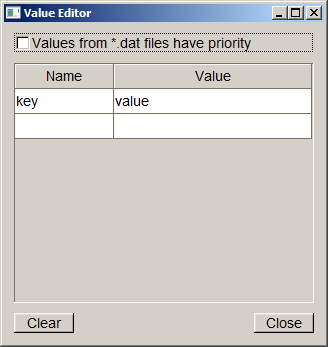
New variables are created by entering a name in the empty “Name” field at the end of the table. Variables are deleted by deleting the name from the table. All variables may be deleted by pressing the “Clear” button.
“Values from *.dat files have priority” determines whether values found in a *.dat files or values displayed in the table are used when invoking a dialog. If the checkmark is not set, then values from the table have precedence. If set values are taken from the *.dat file which is also the case if the Value Editor window is not shown.
The data file editor is a tool for creating and updating *.dat files.
The editor consists of two tabs. The first labeled “HTML settings” is used for editing values for use with HTML files. It has the following elements:
New entries can be added at the end of the list by entering a new name or return code.
Variable names can be extracted from an HTML file and inserted into the variables table by selecting the menu entry File -> Import Variables.
The second tab labeled “Templates” is used for editing settings for template files. It has the following elements:
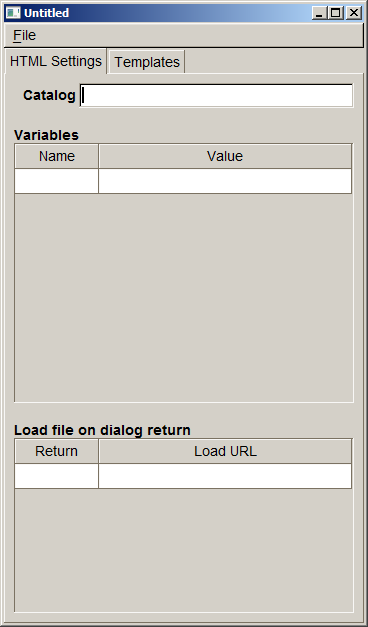
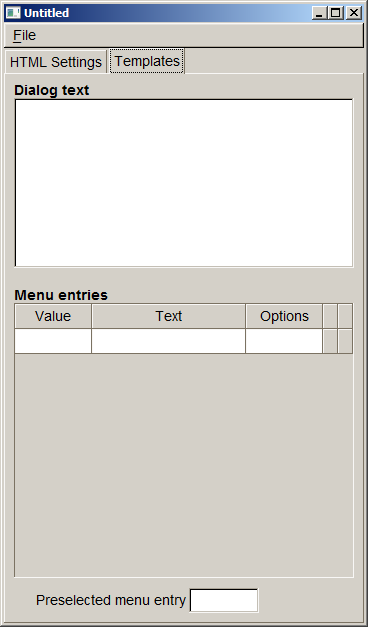
Selecting this menu entry opens the JavaScript console. This will display errors during JavaScript script execution and it will display output generated by calls to con-sole.log() from within the script. The JavaScript console will begin recording the output when started for the first time. Once it has been started it will even record the output when the window gets closed. In this case the output can be viewed by re-opening the JavaScript console window.
This tool shows some performance statistics numbers for the last shown dialog. If a terminal has been connected performance numbers are shown both for the PC and the terminal. The following values are shown:
Selecting this menu entry allows writing debug logs to a file. The logs are similar to activating GUI_LOGMASK and show the resulting HTML code among other information. If a terminal is connected, the client logs are written to this file as well. Selecting the menu again stops logging to the file.
GUI Viewer can be invoked from the command line. In this case it is possible to pass options and parameters to select which configuration to use and which file to show. In case there is already an instance of GUI Viewer running these parameters and options are passed on to this instance for processing and the newly started GUI Viewer immediately returns.
The usage is like this:
gui_viewer [options] [<url>]
<url> is the file name of the dialog file to be displayed. If it is not provided GUI Viewer starts with an empty terminal screen.
The command line options supported are:
--device <device.def> This options allows selecting the device to
be used just like using the “Select Device” menu entry. <device.def> is the name of the *.def file to be used
--config <gui.ini>
This options sets the configuration (gui.ini) file. <gui.ini> is the filename of that file.
--region \<id>
By this option the region id is selected given in <id>.
--check-terminal
This option prints the model name of the terminal to standard output. In case no terminal is connected “none” is printed.
--version
The version information and configuration is printed to standard ouput.
The device definition file (*.def) specifies the terminal image used as background image and the size and position of display and buttons of the terminal. It has INI file format and contains the following sections.
This section contains the name and image of the terminal. The name is displayed as the window title of the GUI Viewer, the image is displayed as background image. It is recommended to use a relative path for the image and use ‘/’ as directory separators (even for Windows). The path is considered to be relative to the *.def file. GIF, JPEG and PNG images are supported.
Example:
This section defines the position of the upper left corner along the width and height of the terminal display. Coordinates are relative to the shape image and start with (0,0). The following keywords are used to specify the coordinates:
Width and height must match the size of the physical display in pixels to obtain a preview that is as close as possible.
Example:
As with the display terminal keys may be specified. These are placed as invisible buttons on top of the background image. Clicking on them emulates pressing the terminal key. The number and position of keys is terminal specific. The following keys are supported:
The coordinates / sizes are specified the same way as for the display.
Example:
So the key button area for the ‘0’ key is positioned at 149,632 of the terminal shape image, 74 by 50 pixels in size and the key button area for the ‘*’ key (mapped to F10) is positioned at 63,634 and 74 by 49 pixels in size.
.html files and *.tmpl files may contain XML processing instructions (e.g. <?var …?> to insert variable data. GUI Viewer will look up this information in *.dat files. These have the same base name as the HTML file but have the extension .dat. *.dat files have INI file format and support the following sections:
This section contains the variables available for processing the HTML file. The variable name is used as key and the content is used as value in the section.
Example:
Value section might also specify data for <?foreach?> statements. See the following HTML example snippet with <?foreach ?> processing syntax.
HTML Example:
Corresponding DAT file entry:
This section contains the text to be substituted for <?insert text?> in *.tmpl files.
Example:
This section contains the text to be substituted for <?insert menu?> in *.tmpl files. The [template_menu] section is able to define several menu entries. For each menu item there is one line of the form <return value>=<text>. <text> is the text to be displayed for this menu item and <return value> is the value returned when this menu item has been selected. Options belonging to a menu item can be set using: <return value>_opt=<option value>. A menu item may be preselected using preselected=<return value>.
Example: menu.dat file:
For creating a mock-up of a terminal with GUI viewer it is supported to load other HTML dialogs when the current dialog returns with a specific return code. The mapping of return codes to names of HTML dialogs to load is done in this section.
Example: menu.dat file:
In this example if the 3rd menu is selected, then submenu3.html gets loaded.
The [catalog] section specifies a catalog file that can be used by the HTML file with XML processing instruction <?text …?>. For more details please refer to chapter Multi-Language Support that describes Multi-language support with catalog files.
Example: catalog.dat file:
GUI viewer comes along with demo HTML files demonstrating usage of catalog files.
The GUI system comes with a sample application that demonstrates system features and provides a starting point for application developers who use the GUI system.
The GUI system is provided on different target platforms. The following sections describe how to use the GUI sample application on these platforms. In addition, this chapter gives general information about required components to run ADK GUI (runtime libraries, installing fonts).
V/OS operating system with additional download packages for
Optionally additional user font packages might be installed to use different true type fonts.
libvfiipc. For this reason a GUIPRT application should use the newest version of libvfiipc (at least version 1.4.0), which comes along with ADK components packages. Linking a GUI client application with static GUI library libvfiguiprt.a requires adding libvfiipc.a to the linker command as follows: <library path> means the path, where libraries of libvfiipc are located.For DirectGUI using guiserver, resource files have to be accessed from processes running as a different (system) user. This has to be considered when packaging resource files so that access rights for these files are set up appropriately.
The recommended way is to have a separate package for the resource files (i.e. directory “www”) and set group “system” when creating it:
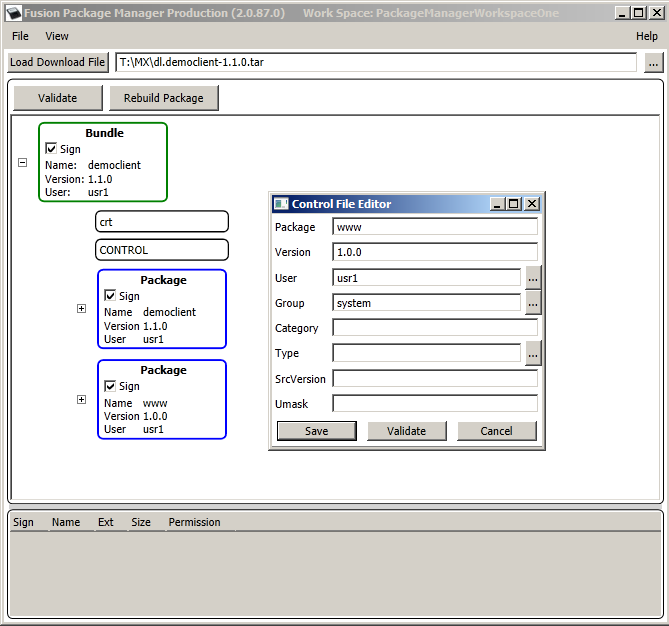
Providing fonts for the GUI system on V/OS requires the installation of a user font package containing font files in true type format (TTF). Detailed information on how to create user font packages can be found in the document “Fusion Secure Installer ERS”. An example user font package comes with the demo application in the documentation distribution package.
The GUI system requires TTF font files and a special font index file called fonts.dir. These files must be added to the top level folder of the user font package. The index file fonts.dir is required by the X11 emulation library (part of GUI system) that is responsible for the font handling. The file fonts.dir can be generated with Linux tools mkfontscale and mkfontdir, which are available on native Linux systems or Cygwin systems installed with X11 font utilities. Since version 1.6.1 the distribution packages of GUI system contains gui-font-utils-win32-X.X.X.zip with font tools mkfontscale.exe and mkfontdir.exe for Windows. The usage of the font tools and steps to create the fonts.dir file are described as follows:
mkfontscale (e.g. for Windows: C:\fonttools\mkfontscale.exe)mkfontdir (e.g. for Windows: C:\fonttools\mkfontdir.exe)The file contains a list of available fonts that are supported by the TTF files in the folder. The first line contains the number of font lines following below. Each font line represents a font variant, which is specified by parameters in the XLFD string (X Logical Font Description) that is appended to the font file name (with blank). The parameters in the XLFD string are separated by a ‘-‘ and contain information of supported font attributes like affinity, weight, and encoding. Please note that the second parameter “typeface family” (here: “dejavu sans”) must be used by application for:
For Verix operating system no additional download packages or runtime libraries are required to make the GUI server runnable. GUI server just depends on on-board libraries coming along with OS and the EOS. It is recommended always to use the newest OS and EOS versions available on Verifone DevNet. In addition, always the newest Verix SDK and EOSSDK should be used to build the GUI client application in order to avoid incompatibility issues with the OS.
libvfiipc. For this reason a GUIPRT application should use the newest version of libvfiipc (at least version 1.7.2).libposix.so. For this reason a GUIPRT application should use the newest version of libposix (at least version 1.7.3).For building a GUI client application, the developer has to consider the following mandatories:
libvfiguiprt.a requires adding svc_net.o, elog.o, libposix.a and libvfiipc.a to the linker command. Object files svc_net.o and elog.o are part of EOSSDK. Library libposix.a contains POSIX emulation functions for Verix, which the GUI library libvfiguiprt.a depends on. Library libvfiguiprt.a comes along with the GUI distribution package for Verix. libvfiguiprt.a and libvfiguiprt.so were compiled with VRXCC compiler option –p to generate ARM11 optimized code. For this reason, an application must use the option –p for the VRXCC compiler and linker.libvfiguiprt.so) the compiler command line must contain the following define: <library path> means the path, where shared object libvfiguiprt.so is located.<library path> means the path, where shared object libvfiipc.so is located.libvfiguiprt.so requires shared POSIX library libposix.so. or this reason the following linker settings must be added to command line: <library path> means the path, where shared object libposix.so is located. For building a Verix system V shared library (VSL library) with a built-in GUI client, the developer has to consider the following mandatories:
libvfigui_vslpic.a and libvfiipc_vslpic.a for linking, which come along with the GUI and IPC distribution package for Verix. This library contains position independent code, which is required by a VSL library. In addition, the linker requires svc_net.o, elog.o, and libposix_vslpic.a to be added to the linker command for VSL library. Object files svc_net.o and elog.o are part of EOSSDK and must also be added for linking the application that uses the VSL library. Library libposix_vslpic.a contains the POSIX emulation for Verix. Please note to use the VSLPIC variant of this library as well. libvfiguiprt.a directly since building a shared object is more complex and linker will be able to remove unused code parts from the static library. For shared VSL libraries, the complete code is always added and no optimization is done by the linker.For building a Verix shared library (LIB library) with a built-in GUI client, the developer has to consider the following mandatories:
libvfigui_libpic.a and libvfiipc_libpic.a for VRXLIB command. The libraries come with the GUI and IPC distribution package for Verix and contains position independent code without C++ exception handling, which is required by a LIB library. In addition, the LIB library requires svc_net.o, elog.o and libposix_libpic.a to be added to the VRXLIB command. Object files svc_net.o and elog.o are part of EOSSDK and must also be added for linking the application that uses the LIB library. Library libposix_libpic.a contains the POSIX emulation for Verix. Please note to use the LIBPIC variant of this library as well. libvfiguiprt.a directly, since building a shared object is more complex and linker will be able to remove unused code parts from the static library. For shared VSL libraries, the complete code is always added and no optimization is done by the linker.Launching the GUI system:
It is recommended to download the GUI server binary guiserver.out to the same group where GUI client binary is located, since both tasks require access to environment variable GUI_DISPLAY.
Since Verix operating system with environment variable *GO allows to run just one application task at startup, it is always necessary to start GUI server (guiserver.out) by function run() from a task that was started by *GO.
For instance, GUI server could be started by a) GUI client task directly before any of the UI functions are invoked. b) a separate launcher task that runs the GUI server and then the GUI client(s).
*ARG.Providing fonts to the GUI system on Verix requires the download of font files in true type format (TTF) and a font index file fonts.dir. Please refer to chapter Installing Fonts on V/OS to get more information about font handling with file fonts.dir and how this file is created.
TTF font files and font index file fonts.dir must be downloaded to folder fonts on drive F: (group 15): F:15/fonts.
Distribution package provides a zip file gui-vrx-demo-x.x.x.zip containing a downloadable demo application with a sample fonts.dir and some sample fonts.
Following is required:
A Visual Studio 2008 solution file is provided to compile the demo application.
The demo application comes with a resource folder that contains several sample templates, dialogs and images for different platforms.
Since version 1.4.0 the UI system supports activation of logging messages for diagnostics and problem analyses. On both platforms Verix eVo and V/OS logging messages are enabled by setting environment variable GUI_LOGMASK. The variable is defined as a bitmask consisting of following decimal values:
Default value for GUI_LOGMASK is 0 and no logging outputs are activated as default. LOG_EMERG represents the lowest logging level, which only generates messages, if the UI component cannot be started or is not working at all. The highest level LOG_DEBUG will produce many messages of low-level I/O routines and should only be enabled for debugging purposes. For first analyses it is recommended to set LOG_ERR, which will provide information about error conditions, e.g. wrong resource or image paths, communications problems between GUI server and client. In addition, LOG_INFO can be activated to display all communication data (JSON messages) between application and the UI system.
The environment variable GUI_LOGMASK can be used for the following UI components:
guiserver)libfltkgui)libvfigui)If one of the UI components reads GUI_LOGMASK at startup, it generates logging messages to an output channel that depends on the operating system used:
-l ELOG.LIB=N:/ELOG.LIB to the command line of the VRXHDR utility. Please note that EOSLog library requires to set environment variable *DEBUG=1, before any outputs are sent out to COM port. Both *DEBUG and GUI_LOGMASK can be set with DDL download tool or directly in parameter menu of Verix Terminal Manager.GUI_LOGMASK must be set in V/OS installation package (details for setting environment variables can be found in Secure Installer Documentation). The easiest way is to set the variable in start file of UI client application as follows:A logging message consists of several fields and the content is similar on both platforms:
Verix eVo:
log prefix 2), source file, source line, task ID, timestamp 1) log channel 2) log level message
V/OS:
log prefix 2), source file and line, process ID, timestamp 1), log channel 2), log level, message
1) timestamp:
The timestamp format is <seconds>.<milliseconds>. The value represents the time since beginning of capture (startup of UI component).
2) log prefix, log channel:
Since version 2.0.0 DirectGUI and ADK Printer server were combined to one server component and the logging message format has changed. Former field “logging component” was replaced by “log prefix” and this field is no longer used to identify the component. The field now is set to GUIPRT for both combined services to specify the system including all components of DirectGUI and HTMLPrinter. For identification of the specific subcomponent the new field “log channel” was introduced to identify logging outputs for the following components:
GUI: DirectGUI server (guiserver) or GUI related module in combined guiprtserverPRT: HTMLPrinter server (prtserver) or HTMLPrinter related module in combined guiprtserverGUIPRT: shared module in combined guiprtserverGUI: DirectGUI server (guiserver) or GUI related module in combined guiprtserverGUICL: Remote GUI library, UI clientPRTCL: Remote HTMLPrinter library, printer clientOn older Verix OS (QTxxx112, QTxxx108 and lower) each allocation/cleanup of dynamic memory with malloc() / free() and new / delete takes a lot of time, which causes the UI system to run much slower than on V/OS. Newer OS versions (since QTxxx120) come along with a dynamic heap memory management, which increases the performance of UI system significantly. It is highly recommended to run UI system on such newer OS versions on Verix!
In addition, since version 1.5.0 the UI system supports activation of fast memory cleanup with free() and delete (for more details refer to Verix SDK documentation of function setFree()). The fast memory cleanup mode disables free() to validate the pointer before the memory is freed, which causes a significant performance improvement for free() calls. The activation of fast memory cleanup is enabled for UI service (guiserver) as default. The UI import library (libvfiguiprt.a) does NOT call setFree() and it is up to application to enable fast free() mode as well. Verix applications may enable fast memory cleanup by calling setFree() in main() as follows:
Please note that setFree() is only supported by newer SDKs (since 03.08.01) and newer Verix OS (since QTxxx120) and it depends on used Verix OS, if guiserver is able to activate this feature.
If an application allocates a huge amount of memory (e.g. by using big images or scaling up an image to arbitrary size), the GUI service (guiserver) may run out of resources and is terminated by the OOM killer of system (OOM=out of memory), if V/OS is not able to provide this memory.
In this case one of following messages may appear in console:
or
V/OS is configured to use overcommitted memory. This means that when malloc() or new operator return non-NULL, there is no guarantee that the memory really is available. In case it turns out that the system is out of memory, the process is killed by the OOM killer of the system.
For new and new[] operators, a possible way to detect the OOM during runtime is by catching exception bad_alloc as follows:
This would imply that all components (even OS libraries the guiserver is using) would implement such mechanism.
BUT: This exception is not thrown for invocations of malloc()!
In summary there is no chance to avoid OOM kills at all, unless V/OS is changed to use overcommitted memory. The only way to avoid OOM kills is to reduce usage of dynamic memory (e.g. by using smaller images).
Former versions of GUI service used a fixed limit of 2 MB to support even older Verix OS versions. This default was a trap for applications with higher requirements on the GUI system, since the fixed limit was quickly reached, if an application has used huge HTML documents including CSS or scaled images. For this reason since version 1.8.0 the heap size of GUI service (guiserver.out) is set to 0, which means an unlimited heap size. With the unlimited heap size GUI service is able to allocate memory as long as it is available in the system and memory allocation peaks (e.g. for loading images) do not cause the GUI service to crash by exceeding the fixed heap limit size.
Using an unlimited heap size requires the installation of a newer Verix OS supporting the dynamic heap management V1 or V2. The following table shows an overview of platforms and Verix OS versions providing the dynamic heap management:
Table: Platforms and OS Versions with Heap Management Scheme
| Platform | OS Version | Heap Management Scheme |
|---|---|---|
| Vx520 | QT520109, QT520110, QT520111, QT520112 | Dynamic Heap V1 |
| Vx520 | QT520108, and earlier | No Dynamic Heap |
| Vx520 | QT520120, and later | Dynamic Heap V2 |
| Vx520 GPRS | QT5G0109, QT5G0110, QT5G0111 | Dynamic Heap V1 |
| Vx520 GPRS | QT5G0106, and earlier | No Dynamic Heap |
| Vx520 GPRS | QT5G0120, and later | Dynamic Heap V2 |
| Vx675 | QT650104, and earlier | No Dynamic Heap |
| Vx675 | QT650120, and later | Dynamic Heap V2 |
| Vx680 | QT680109, and earlier | No Dynamic Heap |
| Vx680 | QT680110, QT680111 | Dynamic Heap V1 |
| Vx680 | QT680120, and later | Dynamic Heap V2 |
| Vx680 3G | QT6G0109 | Dynamic Heap V1 |
| Vx680 3G | QT6G0120, and later | Dynamic Heap V2 |
| Vx680 BT/WiFi | QT6B0105 | No Dynamic Heap |
| Vx680 BT/WiFi | QT6B0110, QT6B0111 | Dynamic Heap V1 |
| Vx680 BT/WiFi | QT6B0120, and later | Dynamic Heap V2 |
| Vx680 CDMA | QT6C0110 | Dynamic Heap V1 |
| Vx805 | QT850109, QT850110 | Dynamic Heap V1 |
| Vx805 | QT850120, and later | Dynamic Heap V2 |
| Vx820 | QT820109, QT820110 | Dynamic Heap V1 |
| Vx820 | QT820120, and later | Dynamic Heap V2 |
| Vx825 | QT830109(QT00012J) | Dynamic Heap V1 |
| Vx825 | QT830120, and later | Dynamic Heap V2 |
| all | QTXXX240, and later | Dynamic Heap V2 |
In case of an OOM (out of memory) the application can do the following:
_heap_current() –> returns the current heap size of the process in bytes_heap_max() –> returns the maximum heap size that was required by the process at this pointWorkaround for older Verix OS versions:
If GUI service with new default heap size of 0 is started on an older Verix OS not having a dynamic memory management, the guiserver.out crashes immediately with a system logging message similar to the following:
In order to avoid this crash on such older Verix OS versions, the user may patch the binary guiserver.out with VRXHDR tool to use fixed heap limit size. For instance, if an application requires GUI service to use a maximal heap size of 5 MB, the VRXHDR tool can be called as follows:
When creating HTML documents for a terminal it has to be considered that it has much less computing power compared to a desktop computer and even a smart phone. Therefore, care has to be taken when designing HTML pages and style sheets to avoid computationally expensive tasks. The following list gives some tweaks that can be used to speed up the display of dialogs: